![Eleiko_Logo_2021.png]](https://knowledgebase.eleiko.com/hs-fs/hubfs/Eleiko_Logo_2021.png?height=40&name=Eleiko_Logo_2021.png)
Documents on deals
If you want to send additional images or files together with your quote to your customer, you do this in Enterprise/in the pop-up window that comes up when you create or view a quote from HubSpot.
View this video or read the guide below.
Video: attach files to quotes in Enterprise
First, we will have a look on how it works. When looking at a quote in Enterprise you will see how many files that are connected to that quote in the upper right corner.

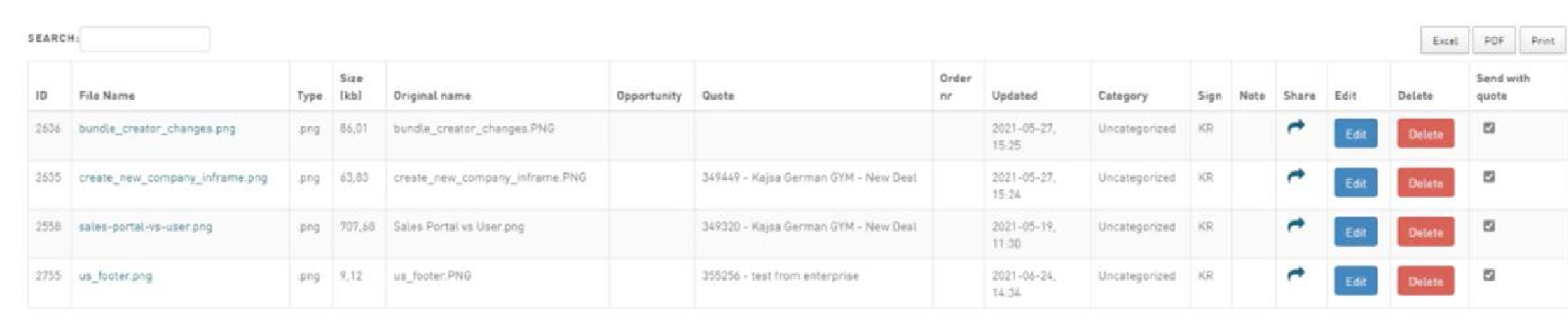
If you click on the number with number of files connected you will see the view with all the different files and documents that are connected to the customer/company. In the example below you can see there are three different quotes with documents attached. The top document doesn’t have a quote though. That is because the document is uploaded on customer level and not company level.
On the right you can also see send with quote and if these are ticked it means that you can choose from these files/documents when sending the quote to the customer. If not, they will not appear in the list when sending the quote. BUT you can only send the documents that are attached to the quote itself.
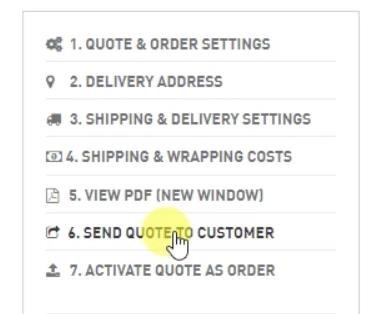
Now, when you want to send additional files together with your quote to the customer you go into the quote. Then you click Send quote to customer in the list to the right.
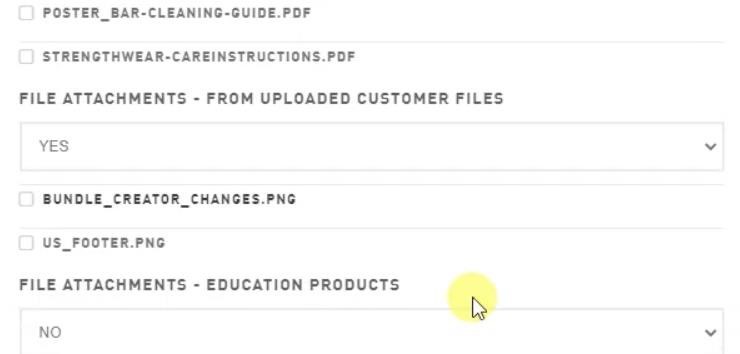
From there the pop-up with the quote will show. You will see all the standard files, those you can’t change. But further down you have File attachments. If you change this one to YES, the documents that are attached to the quote will show and from there you can choose the one/ones you want and then Send quote.