![Eleiko_Logo_2021.png]](https://knowledgebase.eleiko.com/hs-fs/hubfs/Eleiko_Logo_2021.png?height=40&name=Eleiko_Logo_2021.png)
CONTENT
Tickets/Pipeline
Email inbox
Installation Process
Pre-installation checklist
Forms for Technicians
The Validate status
Customer CSAT Survey
TICKETS/PIPELINE
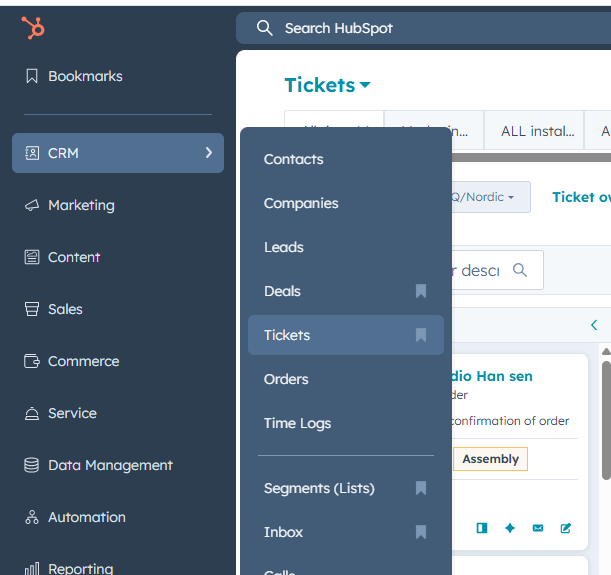
Installation tickets are under CRM > Tickets.
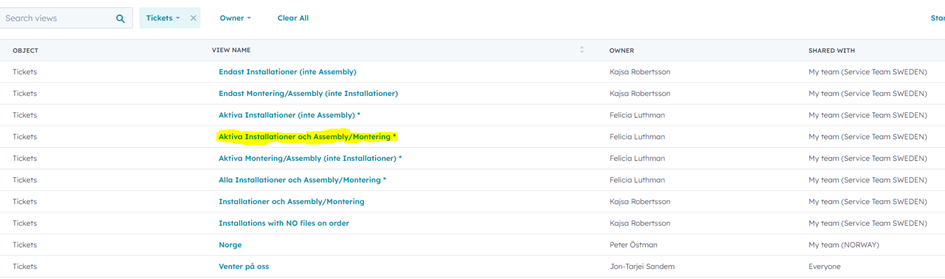
There are a few views you can choose from. Click "Add view" to find them. Check with your manager (or Kajsa) which you should use. 
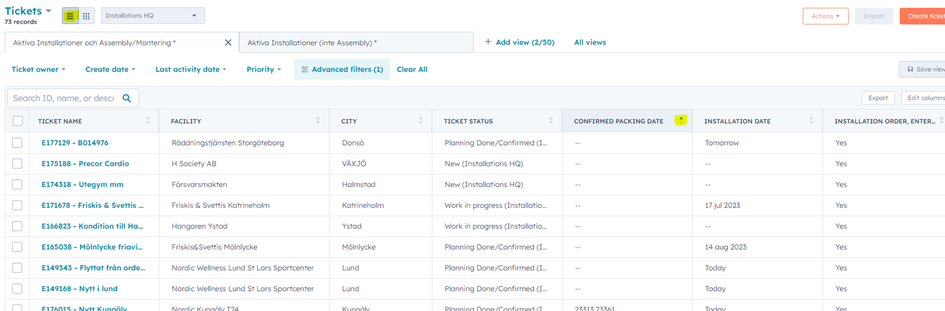
You can view the tickets as a list or on a board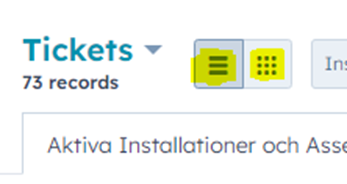
The tickets are sorted in different pipeline stages:
Form Submits = New tickets created from different forms. Read more about these in section Forms. These tickets should be merged into the orginal ticket. Read how to merge tickets here
New Project = Installation orders that are new. A ticket is automatically created from Enterprise and end up in this stage. A pre-installation checklist should have been filled out by the Sales Rep. Read more about pre-installation checklist below.
Work in progress = Currently working on the planning. Technicians/Sub contractors and date of installation not booked.
Updated PDR = There has been a product on the order that has a new Packing Date Report (new Confirmed packing date). After inspection – move to the correct stage
Updated PDR from Planning done = There has been a product on the order that has a new Packing Date Report. This ticket was previously in Planning fully done so really important to double check this Packing Date Report to make sure it still works with the Installation date booked.. After inspection – move to Planning done again if all is okay.
Awaiting Quality = If there is a claim during a installation that you still are waiting feedback on from Quality
Planning fully done = Planning is completed. Installers, customers, and transportation is informed and booked. Order is unlocked.
Validate = Tickets that has passed "Installation date" will automatically end up here and you will need to make the customer phone call before mocing to next stage. Read more about Validate below.
Installation/Claim done = Installation is finished and a survey is sent to the customer. Read more about the Survey below.
Not needed now = Tickets that have been created but are for example not installations. You can see it as a trashcan instead of deleting the ticket.
The tickets are sorted on the confirmed packing dates.
EMAIL INBOX
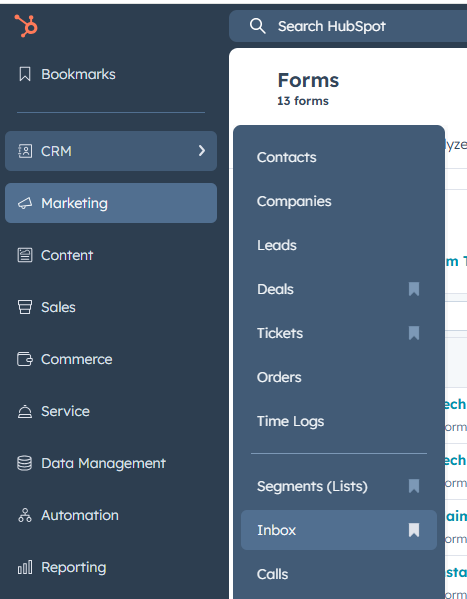
You will find the inbox under CRM > Inbox
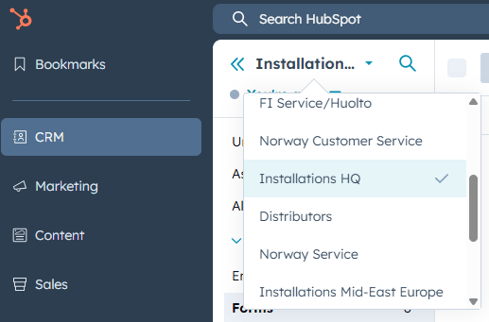
Choose your Inbox, for example Installations HQ
INSTALLATION PROCESS
- Check for new orders in New Project
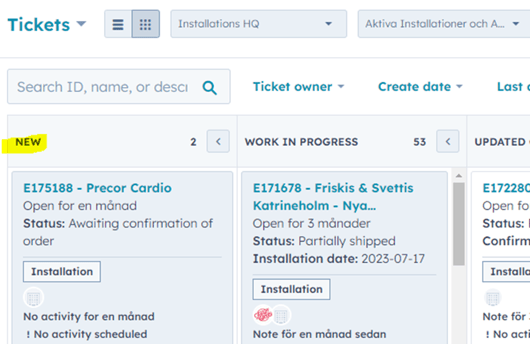
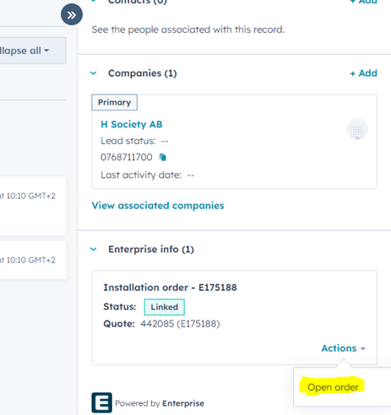
- Open the order by clicking on the order number and the ticket will open. On the right side of the ticket view you can find the order and open it up in Enterprise
- Add information in the left side of the ticket. You can tag the ticket with a category, for example “Komplex Installation”
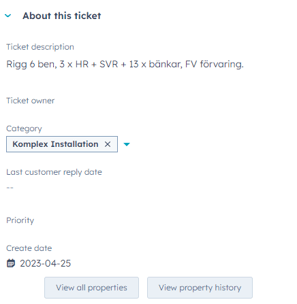
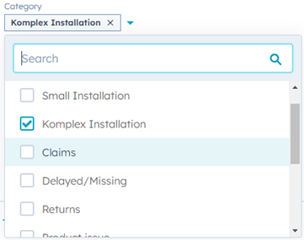
- Check the Pre-Installation Checklist (see below)
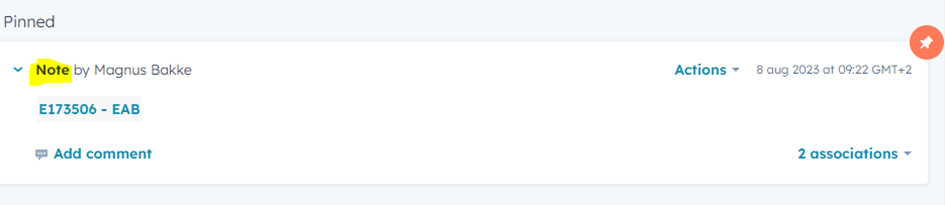
- If you want to link any other information from SharePoint. Create it in SharePoint, copy the URL and add note. You can pin the note to have it locked on the top of the page on the ticket page
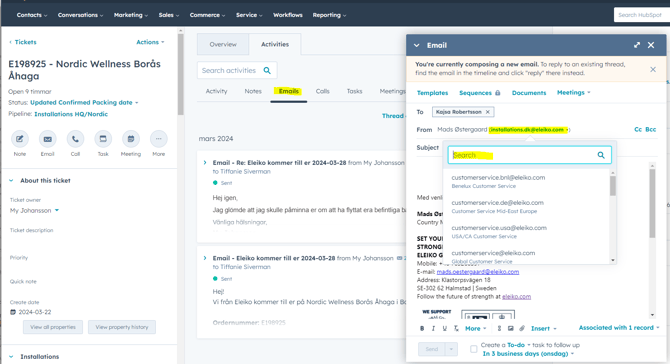
(Updated feature is coming with automatically created folders and documents in Sharepoint) - If you are going to send an email that is related to the ticket send the email from the ticket and this will start the email conversation to be connected to the ticket. Any reply will appear both in the conversation inbox and on the ticket. You can answer from the conversation inbox and it will also be visible on the ticket
NOTE
Make sure the correct email is selected from where you want to send the email. Choose the teams email that you are using in the Conversation inbox (see screenshot above) - Send out an email from the ticket for booking of installers/technicians/sub-contractors and transportation. Under Templates you will find templates to use for booking transportation and installers.
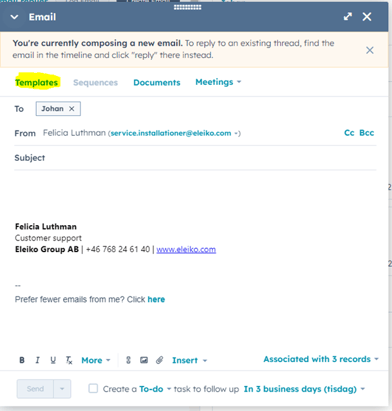
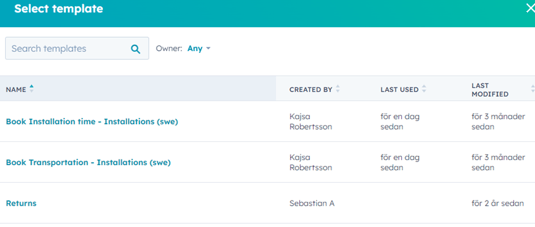
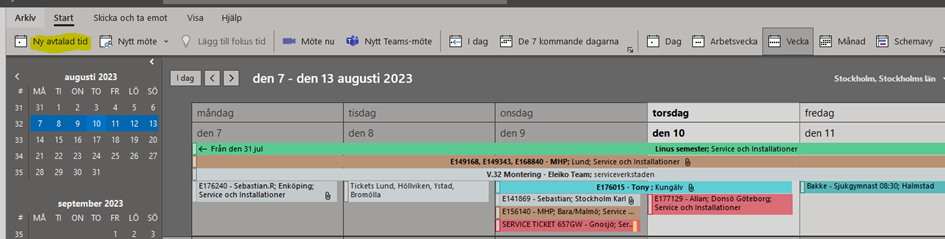
- Add booking in Outlook calendar. Order number and the installation technician should be the name of the booking. Specify which city the installation should take place. Tag with the installers color and add a link to the HubSpot ticket in the booking information
- Confirm the installation with the customer by sending an email from HubSpot
- Update the installation date, if transportation and installation is booked and other relevant information.
- Change the status to "Planning Fully Done"
- When the Installation date is passed with one day the tickets will automatically move to status "Validate". Read below in the section "VALIDATE" regarding what actions you need to take during the ticket is in this status.
- When you and the customer agree that the installation is completed and the customer is satisfied, you manually change the status to "Installation/Claim done".
PRE-INSTALLATION CHECKLIST
This is a list of fields in Enterprise that the Sales rep should complete.
The list is available to view for the installation coordinator in HubSpot. The fields are updated both ways if a change is made.
In HubSpot on the Ticket: 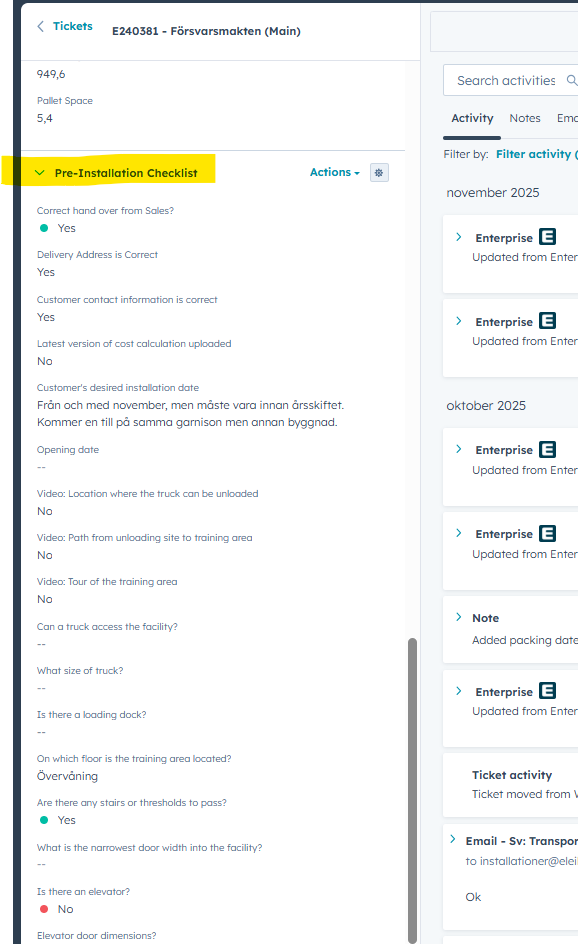
In Enterprise on the Order:
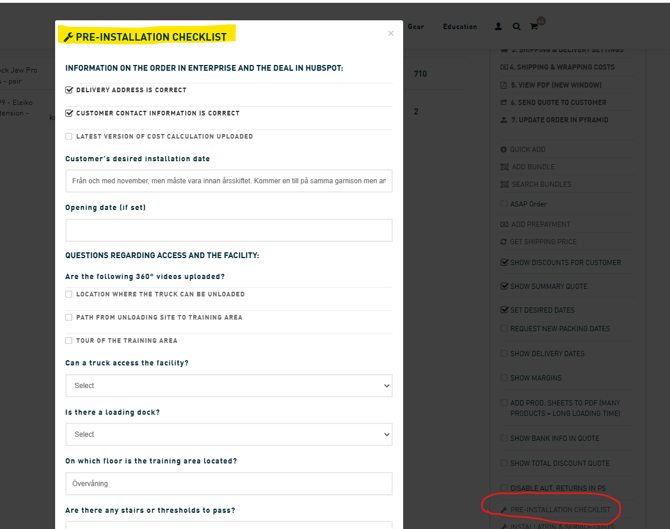
When a new Installation ticket appears in HubSpot the Installation Coordinator checks the Pre-installation Checklist in HubSpot and notes if it is correctly done by the Sales Rep. If it is put "Yes" on "Correct hand over from Sales?" If it is not put "No" and contact the Sales rep to update the Checklist. 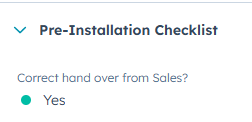
FORMS FOR TECHNICIANS
There are two different forms for the installation technicians (claim and sign-off) and when a form is submitted it will end up in the pipeline stage: "Form Submits".
Check the ticket and take action if needed. Merge into the original ticket to keep all information about the installation in one place. How to Merge tickets read this article.
Installation claim:
If there is any deviations during the installation the Technician will fill out this form and the created ticket will be called:
Installation Technician Claim [ORDERNUMBER]
HQ/Nordic:
NORWAY, Norweigan: https://sales.eleiko.com/claims-form-for-installation-technicians_no
SWEDEN & DENMARK, Swedish: https://sales.eleiko.com/installationclaim
FINLAND, Finnish: https://sales.eleiko.com/claims-form-for-installation-technicians-fi
Not used but added to HQ/Nordic Inbox and Pipeline, English: https://sales.eleiko.com/claims-form-for-installation-technicians_en
Mid East Europe:
German: None yet.
Installation technician sign-off:
After the installation is completed the Technician should fill out this form:
There is a workflow automatically sets the ticket name in the ticket pipeline based on how the technician answers specific questions in the form.
Question 1: “Any deviations?”
-
If the answer is “Yes” (regardless of the answer to Question 2) the Ticket name will be:
DEVIATION Technician Sign-off [ORDERNUMBER]
If “Any deviations?” = No, proceed to Question 2:
Question 2: “Installation accepted without any complaints by customer”
-
If the answer is “Yes” the Ticket name will be:
ACCEPTED and Completed Technician Sign-off [ORDERNUMBER]
-
If the answer is “No” the Ticket name will be:
NOT ACCEPTED but Completed Technician Sign-off [ORDERNUMBER] -
If the answer is “Customer not available” the Ticket name will be:
COMPLETED Technician Sign-off [ORDERNUMBER]
HQ/Nordic:
NORWAY, Norweigan: https://sales.eleiko.com/installation-technician_sign-off_no
SWEDEN & DENMARK, Swedish: https://sales.eleiko.com/installation-technician_sign-off_se
FINLAND, Finnish: https://sales.eleiko.com/installation-technician_sign-off_fi
Not used but added to HQ/Nordic Inbox and Pipeline, English: https://sales.eleiko.com/installation-technician_sign-off_en
Mid East Europe:
German: https://sales.eleiko.com/installation-technician_sign-off_de
VALIDATE
This stage of the process is to Validate that everything went well and that the customer is happy with the installation.
- Has the technician submitted any claim forms?
- Has the technican submitted the sign-off form?
- Is the customer happy?
Tickets will automatically move to this status one day after the "Installation date" is passed. This means that the installation is in progress (not completed as we previously used to indicate). During the time the ticket is in Validate, you should contact the customer by phone to make sure they are satisfied.
When a ticket enters Validate, a Task is automatically created with a reminder about this for the ticket owner (see below).
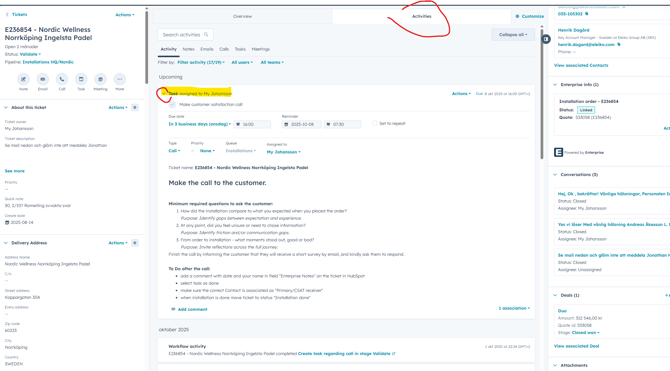
The ticket owner will receive information that a task has been created and then a reminder 5 business days later if it has not been completed.
There is also a useful TO DO list to follow on the ticket.
To Do after the call:
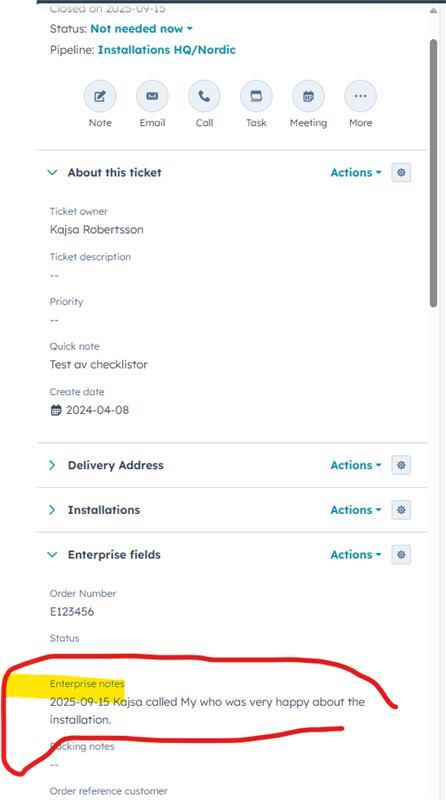
- add a comment with date and your name in field "Enterprise Notes" on the ticket in HubSpot
- select task as done
- make sure the correct Contact is associated as "Primary/CSAT receiver"
- when installation is done move ticket to status "Installation done"
You can find the Enterprise Notes here on the ticket in HubSpot:
To associate one of the contacts as "Primary/CSAT receiver". Mouse over on the right of the contact. Then More > Edit association label
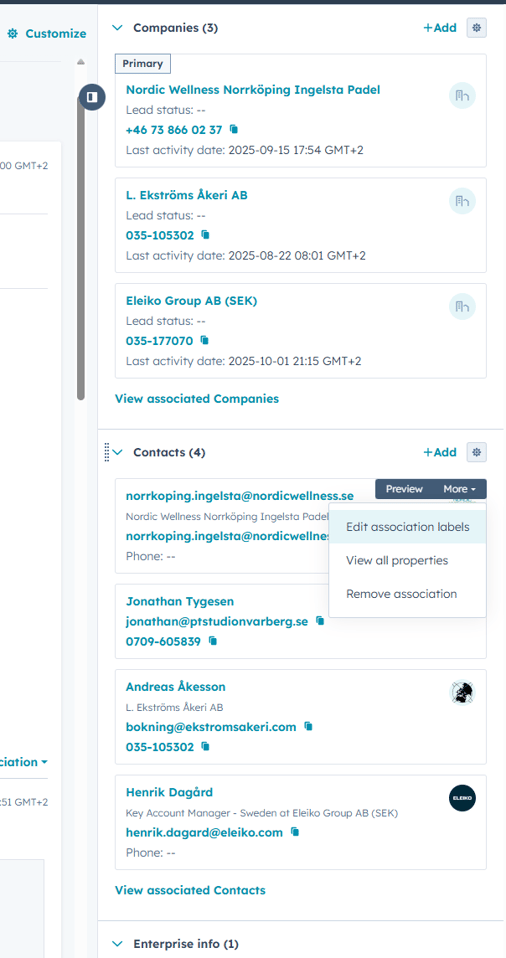
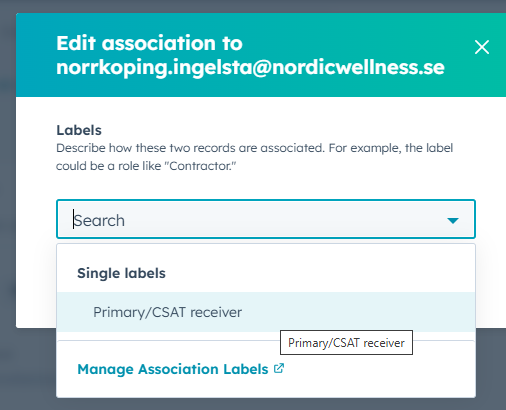
Below is what it will look like if you have done it correctly. 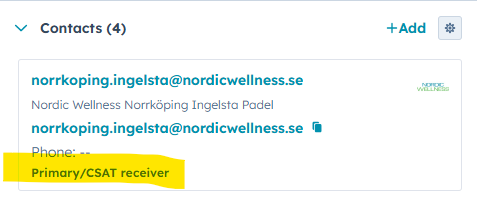
If no contact on the ticket is "Primary/CSAT receiver" no one will receive the survey.
When you and the customer agree that the installation is completed and the customer is satisfied, you manually move the ticket to "Installation/Claim done".
SURVEY
When the ticket is moved manually to "Installation/Claim done" a CSAT Survey is sent to the customer after 5 minutes. The suvey is available in Swedish, Danish, Norweigan, Finish and English.
See workflow in HubSpot: https://app.hubspot.com/workflows/8842163/platform/flow/613604669/edit
SWEDEN and ÅLAND:
Language: Swedish
Survey Name in HubSpot: Installation CSAT Swedish
Submits sent to: installationer@eleiko.com
FINLAND:
Language: Finnish
Survey Name in HubSpot: Installation CSAT Finnish
Submits sent to: huolto@eleiko.com
DENMARK:
Language: Danish
Survey Name in HubSpot: Installation CSAT Danish
Submits sent to: installationer@eleiko.com
NORWAY:
Language: Norweigan
Survey Name in HubSpot: Installation CSAT Norwegian
Submits sent to: servicenorge@eleiko.com
ALL OTHER COUNTRIES:
Language: English
Survey Name in HubSpot: Installation CSAT English
Submits sent to: installationer@eleiko.com
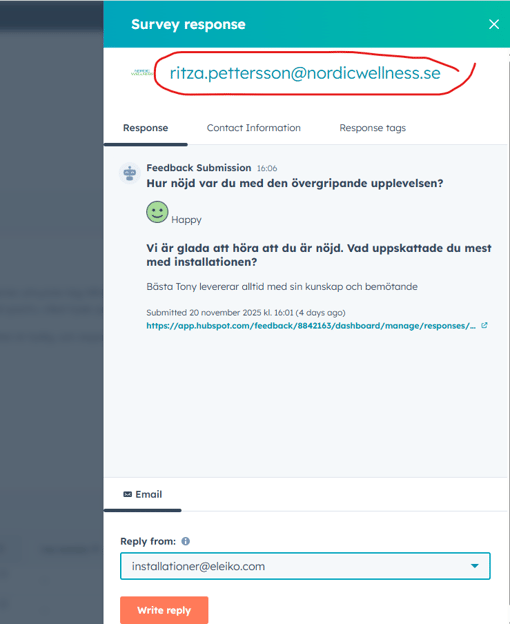
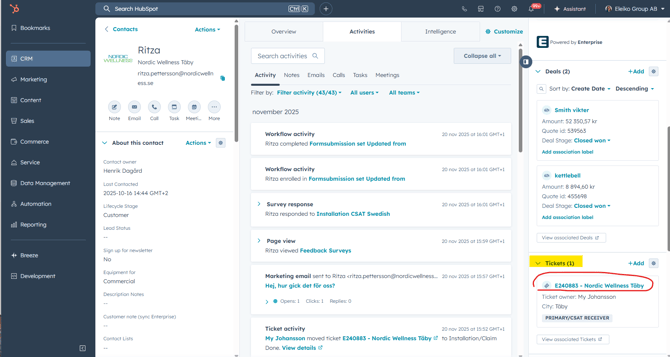
If you receive an email and want to find out what order an CSAT belongs to you can see it in HubSpot: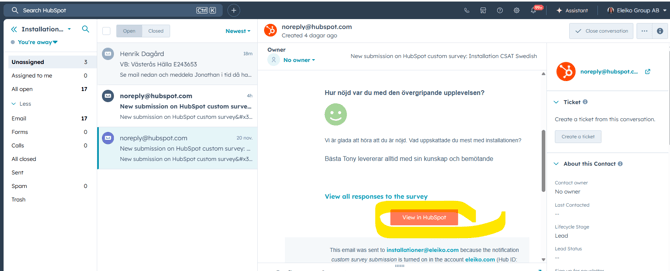
The results for the surveys can also be viewed in HubSpot and the avarage number is also added as a report to a dashboard for Peter Östman.