![Eleiko_Logo_2021.png]](https://knowledgebase.eleiko.com/hs-fs/hubfs/Eleiko_Logo_2021.png?height=40&name=Eleiko_Logo_2021.png)
If you would like to add an email from the inbox to a ticket you first need to create a new ticket and then merge them.

No need to add any information to the ticket as it is going to be merged into the already existing ticket. Just name the ticket the customer name or the order number if an order is connected to the ticket (ie installations).
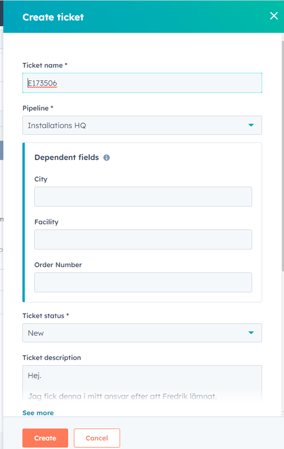
Click create. By naming the new ticket the customer name/order number you can search for the tickets and see the original ticket and the new one.

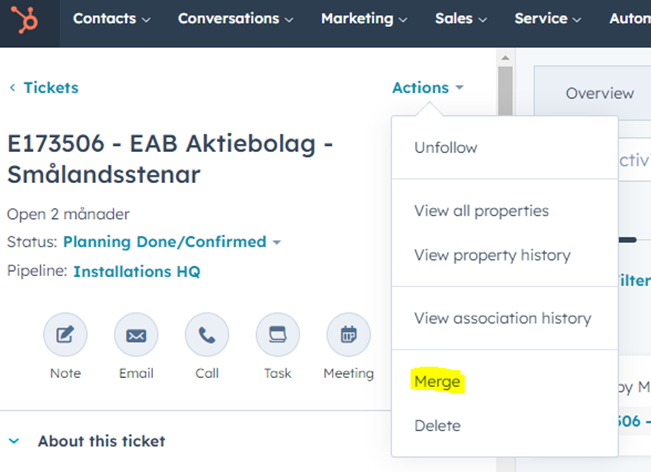
Go to the original ticket and under Actions click Merge. Very important that it is the original ticket and not the new ticket. If you go to the new ticket the original ticket will be deleted and can't be undone.
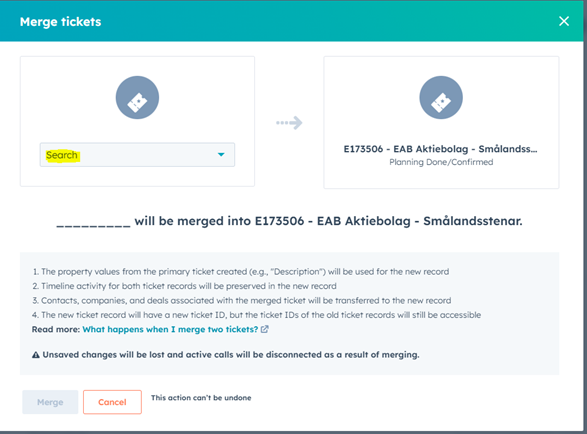
Search for the name you gave the new ticket and select it. Click merge.
The email from the inbox has now been added to the ticket Emails.
After the merge has been done. Go back to the inbox and select "Close conversation" to remove it from the inbox