![Eleiko_Logo_2021.png]](https://knowledgebase.eleiko.com/hs-fs/hubfs/Eleiko_Logo_2021.png?height=40&name=Eleiko_Logo_2021.png)
HubSpot in Chrome browser
Download Chrome to your mobile.
Go to hubspot.com and use HubSpot the same way as on a computer (just smaller and more scrolling). View this video.
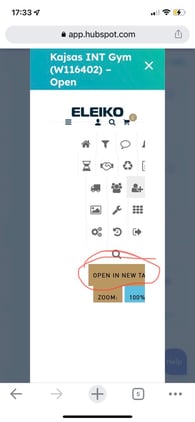
When you come to the Enterprise Pop-up window use the "OPEN IN NEW TAB" so you fit more information on the screen. (Warning: Only one Enterprise window at the same time. Read more here. )
HubSpot Mobile app
The HubSpot mobile app gives you access to some of your most important sales tools on the go.
Once you log in to the HubSpot app, you can view and update contacts and companies, monitor your deals and tasks, access your chat conversations, and manage your app settings.
Note: Not possible to use the mobile app for any integrations with Enterprise
(ie. step 4-6 in the Workflow).
Today
When you open the HubSpot mobile app, the default tab is Today. You can:
- View and complete tasks.
- View meetings.
Contacts
To access data on your contact and company records, tap Contacts in the bottom navigation menu. You can:
- Add a new contact or company.
- Make changes to any existing contact's or company's properties by tapping the About tab. If you're using the mobile app on an iOS device, you can tap certain properties to perform an action:
- Tap the Mobile phone number or Phone number property to start a call to that number.
- Tap the Email property to send a new tracked email from the HubSpot mobile email composer.
- Tap the Website URL property to open that web page.
- Tap the Street address property to search Apple Maps or Google Maps for that address.
- Associate a contact with a company or a deal by tapping the Associations tab.
- In the Android app, tap the Attachments tab to view all attachments that have been saved to engagements on the record's activity timeline. Pinch and zoom on your device's screen to preview an attachment. You can also tap an attachment to view more details, or tap the menu icon to copy a shareable link or delete the attachment.
- Call, send a text message, or send an email to your contact using the icons below their photo.
- Add a note, activity or task to a contact or company’s record. If you're using the mobile app on an Android, you can use snippets to quickly enter a short, reusable block of text to the activity details.
- In the Android app, you can read and add comments to certain activities once you access a record:
- To comment on a note, call, email, or meeting, tap the activity and tap Add a comment at the bottom of the screen. In the comment, you can also mention a user by typing @ and searching their name.
- To view the comments on a note, call, email, or meeting, tap the activity and tap View comments.
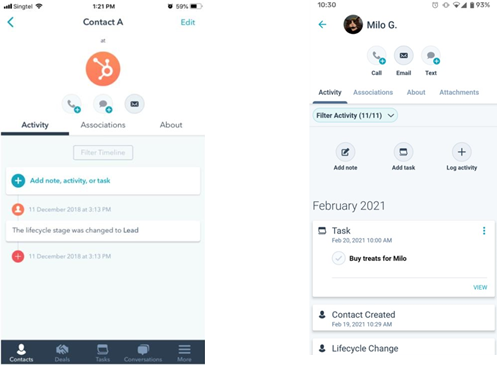
*Images above (left – iOS, right – Android)
Filter contacts and companies
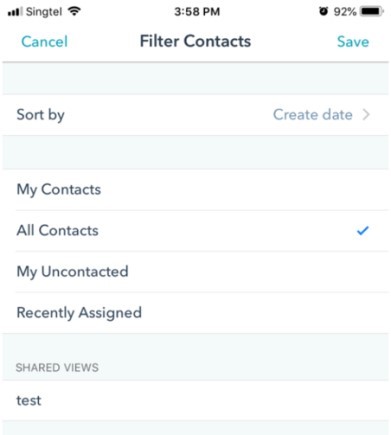
To access a list of your most qualified leads, filter contacts and companies based on your saved filters in the HubSpot CRM. At the top, tap All Contacts, or All Companies to filter the records.
Deals
To interact with your deals, tap Deals in the bottom navigation menu. Swipe left and right to view the existing deals in each of your stages. You can also tap the + icon in the top right to create a new deal, and tap a Deal to view its timeline, contacts, and properties. On the deal timeline, you can add a note, activity, or task.
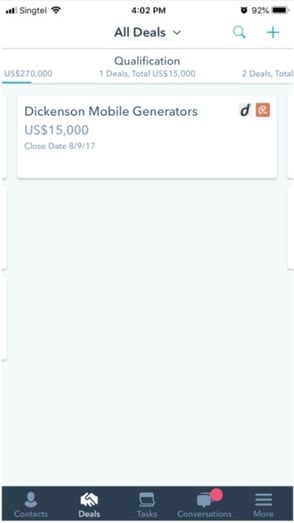
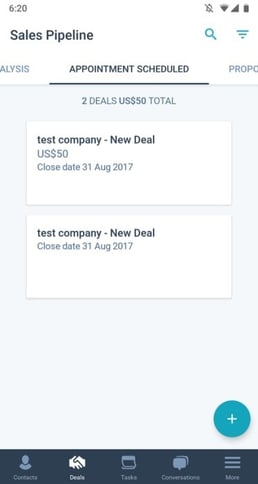
*Images above (left – iOS, right – Android)
Tasks
To interact with your tasks, tap Tasks in the bottom navigation menu.
Settings
In your app settings, you can manage your Preferences and Account settings, provide feedback on the mobile app, and get help from HubSpot Support.
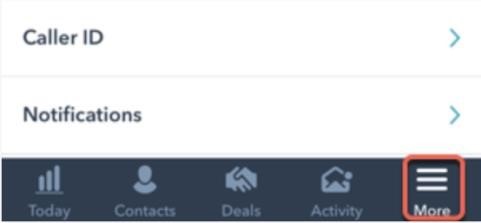
To access your settings on iOS, tap More in the bottom navigation menu.
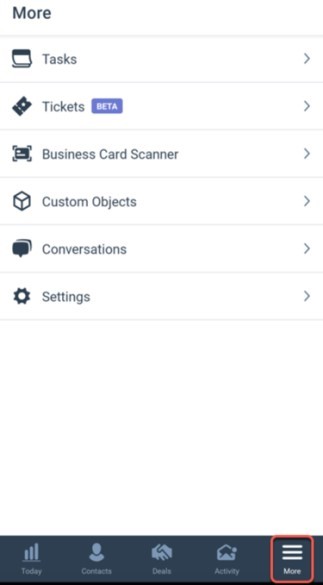
To access your settings on Android, tap More in the bottom navigation menu, then tap Settings.
BELOW USED ONLY FOR HUBSPOT SERVICE (not for SALES)
Tickets (Android only)
If you're using the HubSpot mobile app for Android, you can access your ticket records from your mobile device. To access a ticket record, in the bottom navigation menu, tap More, then tap Tickets. You can also look up the ticket record using the search feature.
From the ticket record, you can:
- edit the ticket's associated records.
- review the ticket's timeline activity.
- update the ticket's properties.
- log a call, meeting, note, or email.
- or comment on a note or logged activity.
You can create new tickets on your mobile device from the tickets index page or from a contact, company, deal, or custom object record.
Conversations
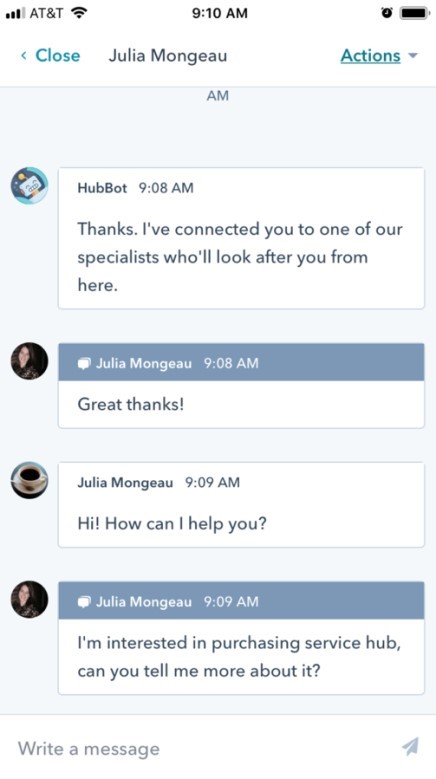
To access your chat conversations and continue the conversation with your leads and contacts while on the move, tap More in the bottom navigation menu, then tap Conversations.