![Eleiko_Logo_2021.png]](https://knowledgebase.eleiko.com/hs-fs/hubfs/Eleiko_Logo_2021.png?height=40&name=Eleiko_Logo_2021.png)
How it works
The SharePoint folder is created automatically when an installation order is activated. The link is synced to the HubSpot ticket every 10 minutes, so it may not appear immediately when the order is activated i.e. the ticket is first created.
Please note: Currently, only the Packing List is synced automatically to the folder. All other documents need to be uploaded manually. Unfortunately, we have not been able to get the Product Collection document to generate and sync automatically at this time. The workaround is to continue sending it to yourself and then upload it manually. Once we have evaluated this setup, we will look at improving this when we migrate to our new ERP/Core system ("New Enterprise").
Accessing the folder
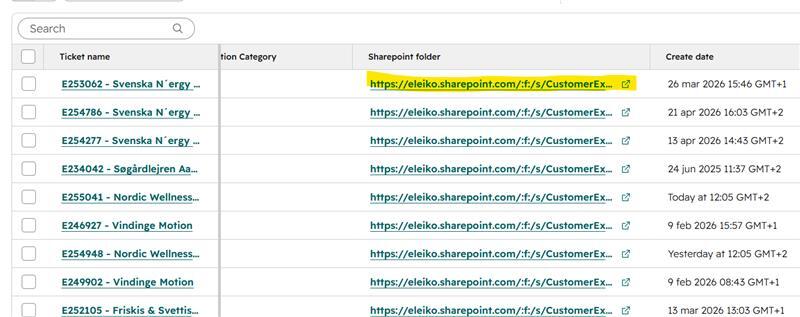
As an Eleiko user – click the icon in the HubSpot ticket or click the icon or the link text directly in the list view to open the folder.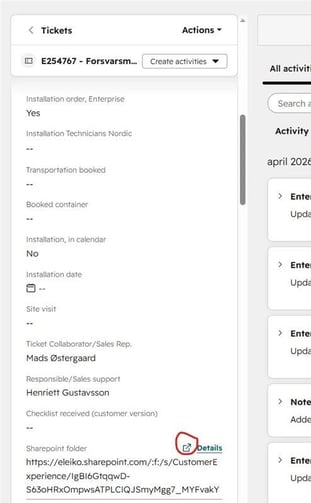
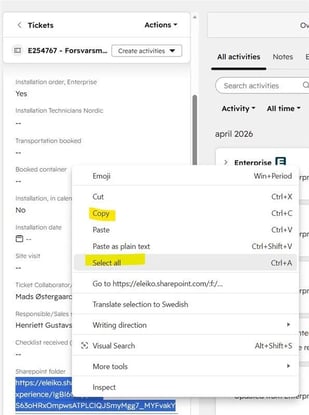
Sharing with someone outside Eleiko – you must copy the link directly from the HubSpot ticket (right-click → Select all → Copy). Do not copy the link from the browser window — that URL requires Eleiko login and will not work for external users.
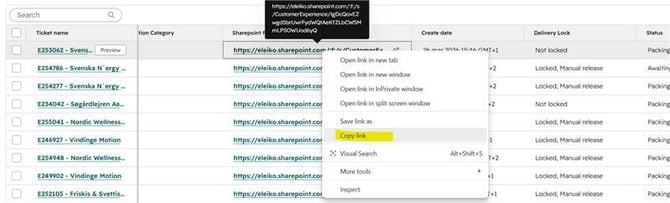
DO NOT copy the link from the browser window that opens after you have opened the link— that URL requires Eleiko login and will not work for external users.
Permissions
Logged in as an Eleiko user:
- Upload and create files
- Create folders
- Delete files and folders
- Move and rename files
- Subscribe to notifications
- Browse and navigate across all installation order folders in SharePoint
Guest / External technician (anonymous link):
- Upload and create files
- Create folders
- ❌ Can not delete files or folders
- ❌ Can not move or rename files
- ❌ Can not subscribe to notifications
- ❌ Only has access to the specific folder they have been given a link to