![Eleiko_Logo_2021.png]](https://knowledgebase.eleiko.com/hs-fs/hubfs/Eleiko_Logo_2021.png?height=40&name=Eleiko_Logo_2021.png)
This is a HubSpot feature and not related to Enterprise in any way.
There are more information about tasks in HubSpot's Knowledgebase
Set defaults for creating tasks
Before you start creating tasks, you can set a default due date, due time, and time period before a task's due date to receive a reminder. These preferences will only apply to tasks you create.
- In your HubSpot account, click your account name in the top right corner, then click Profile & Preferences.
- Select the Tasks tab.
- In the Defaults section, click the dropdown menus to select the default:
- Due date: select the default number of days or weeks that your tasks are due after they are created.
- Due time: select the default time that your tasks are due.
- Reminder: select the default amount of time before your task's due date to receive a reminder. Select No reminder to turn off default task reminders.
- In the Follow-up tasks section, select the checkbox to receive a reminder to create a follow up task every time you complete a task from a list view. Clear the checkbox to turn off follow-up reminders.
- Once you're done, in the bottom left, click Save.
Your defaults will automatically populate the Due date and Task Reminders fields when you create a new task, but you can still adjust these fields for individual tasks as needed.
Create tasks
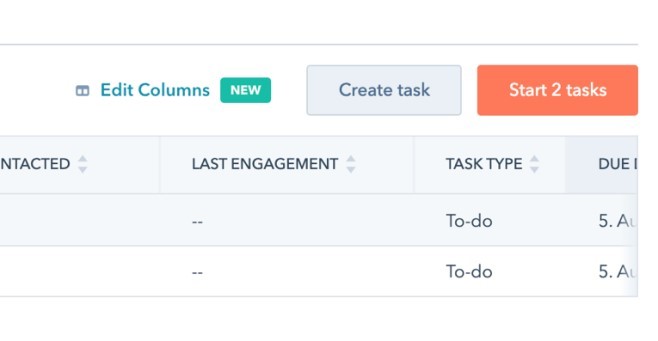
To create a task, you go to Sales and choose Tasks. Afterwards you click on Create task in the upper right corner.
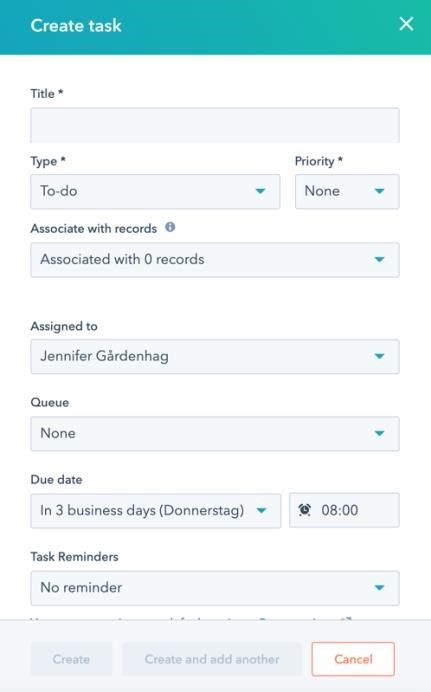
In here you fill in all the mandatory fields and the fields needed, for example:
- Title* – the name of the task.
- Type* – What kind of task it is. To-do, email, or call.
- Priority* – what priority the task is.
- Associate with records – here you can associate the task with a contact or business for example.
- Due date – you can select a due date (read the guide above about setting defaults for due dates.)
- Task reminders – add reminders if needed.
- Notes – add notes if needed with further information.
- Create – then you select create to create the task.
If you want to edit something you can just hover over the task and choose edit. For example, you can edit a note and then you just save it again.

As soon as you are done with your task you can check it off on the task itself by clicking the “check” icon. From here you can also select if you want to create a follow-up or not.

A satisfying feeling to check all the boxes and a good way of organizing your day, week, and month.