![Eleiko_Logo_2021.png]](https://knowledgebase.eleiko.com/hs-fs/hubfs/Eleiko_Logo_2021.png?height=40&name=Eleiko_Logo_2021.png)
Create quote
To create quote from the deals view you choose the deal from the pipeline. Now you will see the deals view for the customer. You will see that you are on the deals view in the left corner. For this example, we just forward the customer directly to Ready for Quote. And in this view y
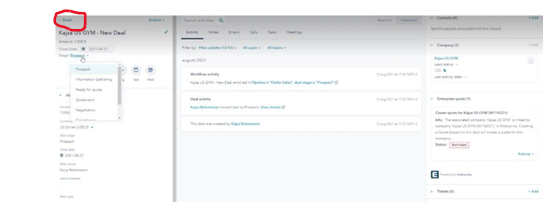
In the column to the right, you will also see what company the deal is associated with, if it is linked to Enterprise, if there is any contacts associated to it and if there is a quote connected.
The associated company/contact first needs to be linked to Enterprise. First follow the steps on how to Link Customer to Enterprise.
To create a quote, go to Actions > Create quote.
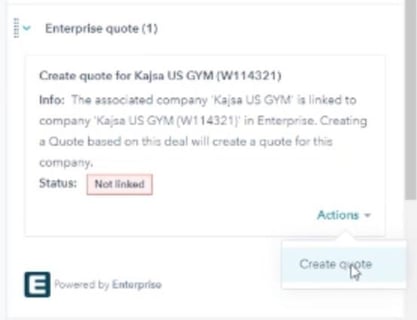
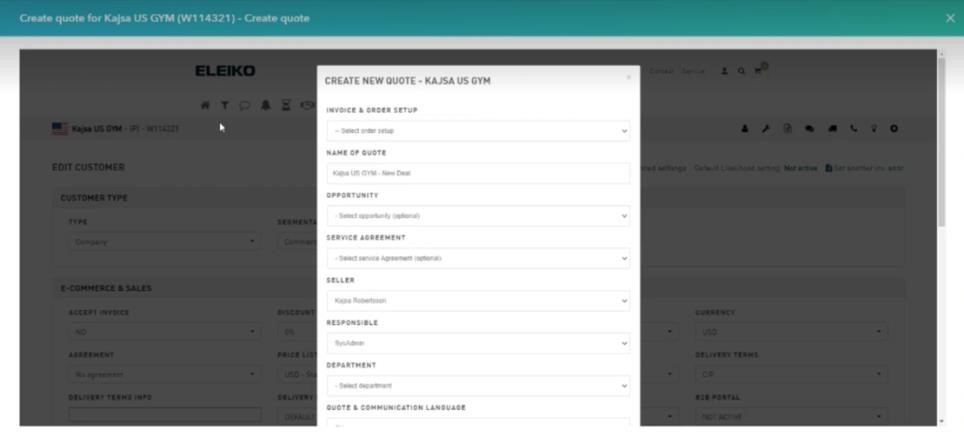
This will automatically open the Enterprise pop-up window where you will end up in the correct company straight away. Fill in the details and Create quote
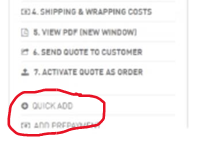
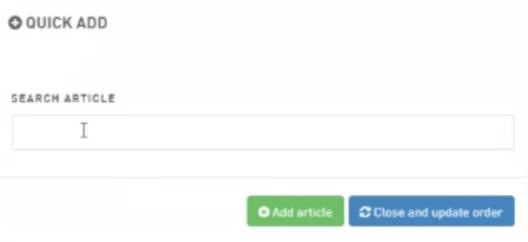
To add to the quote you can choose Quick Add.
Then you will get a pop up where you select articles and then you can close and update order.
If you are not ready to sent the quote to the customer yet you just close the Enterprise pop-up window. When you are back at the deals view you will see that the quote is linked. You can also see what has happened in the activity feed in the middle, for example that the workflow has been updated. But nothing has been sent to the customer yet in this stage.
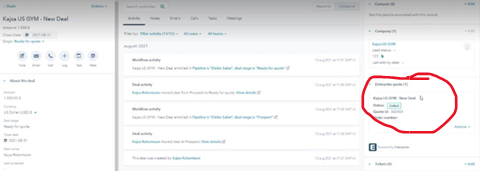
You must send the quote from Enterprise to get the integration to HubSpot to work.
When you are ready to sent the quote to the customer go to Action > Open quote.
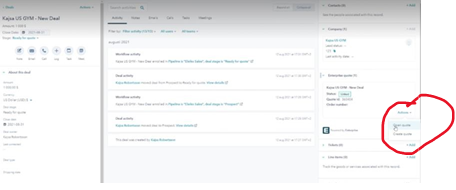
Now you are back in Enterprise pop-up window and choose Send quote to customer to the right. Don’t forget to add delivery address as well.

Now you will see this pop-up regarding the email. You can change the subject/message and add specific documents to a quote. When you are ready choose Send quote.
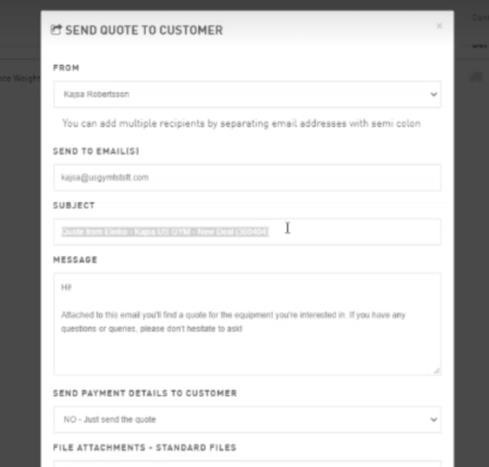
And now the HubSpot/Enterprise integration does some magic.
When a quote is sent from Enterprise integration the following will happen in HubSpot:
- The email is visible in the activity feed for the Deal and Company/Contact.
- The attachments are visible on the deal.
- The Amount field in HubSpot for the deal will get updated with the total price in the quote. (Can also be done manually.)
- The deal is automatically moved to the pipeline stage "Quote Sent".
If the customer needs multiple quotes for the same project as different options you can add more than one quote to the deal. Read more about multiple and master quotes here.