![Eleiko_Logo_2021.png]](https://knowledgebase.eleiko.com/hs-fs/hubfs/Eleiko_Logo_2021.png?height=40&name=Eleiko_Logo_2021.png)
Note that in HubSpot a Contact is a person. This for a Sales Rep at Eleiko can either be a Private person or a Contact person:
- a Customer who is a Private person for a home gym is a Contact in HubSpot which should not be associated to a Company in HubSpot.
- a Contact person at a gym/company/organisation should be associated to a Company in HubSpot.
- a Customer who is a gym/company/organisation is a Company in HubSpot
Create a new Contact
Create a new Company
More information about the Contact/Company view
Add and create views/tabs (takes you to another page)
Create a new contact
View below video on how to create a contact (private person or contact person).
Video: Create a contact
If this Contact is a Private person you can later link this to Enterprise.
If this Contact is a Contact person it should be associated to a company which you later can link to Enterprise.
Create a new company
View below movie on how to create a Company and how to associate an already created Contact person and how to create a new Contact person from the company view.
Video: Create a company and associate contact persons.
Contact/Company view
Video: Contact and Companies views.
Go to Contacts in the menu and choose Contacts or Companies, depending on what you’re after.
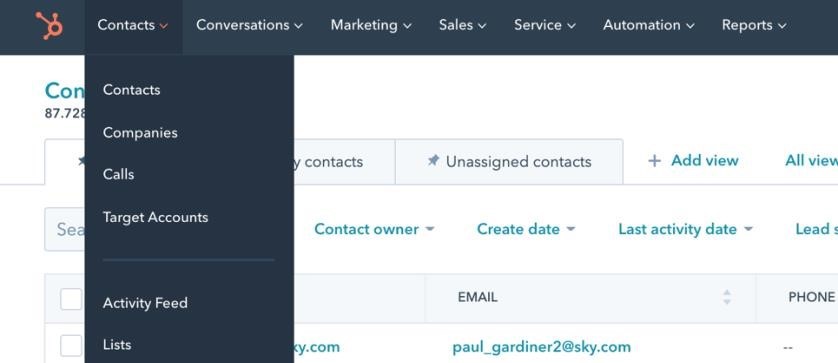
From within these views, both Contacts and Companies, you can filter based on their property values.

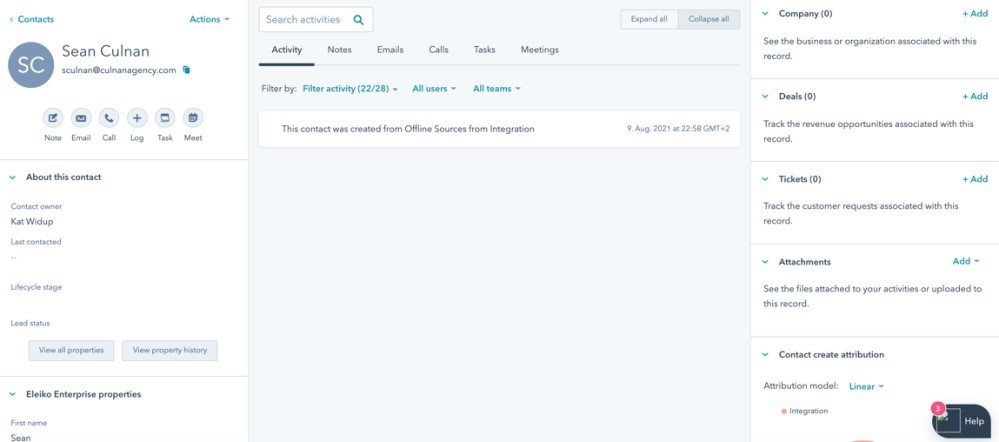
If you click on a contact/company, you will see a different view and from here you find all the information about this contact/company. You can see an example below.
- There is information about the customer on both the left and the right side. To the left you can see Eleiko Enterprise properties. All the information you can see there is also synced to Enterprise if the contact is linked. So, if you make changes here it will automatically show in Enterprise and vice versa.
- In the middle you can also see the Activity feed where you can see all the activities that have been done regarding this customer.
- To the right you can see if the customer is attached to a company or if a company has any contacts (private customers or contacts in Enterprised) attached to it depending on if you are looking at the contact view or the company view.