![Eleiko_Logo_2021.png]](https://knowledgebase.eleiko.com/hs-fs/hubfs/Eleiko_Logo_2021.png?height=40&name=Eleiko_Logo_2021.png)
Link Company
Link Private person
Link FROM Enterprise
Link Company
First make sure you have the Company created in HubSpot.
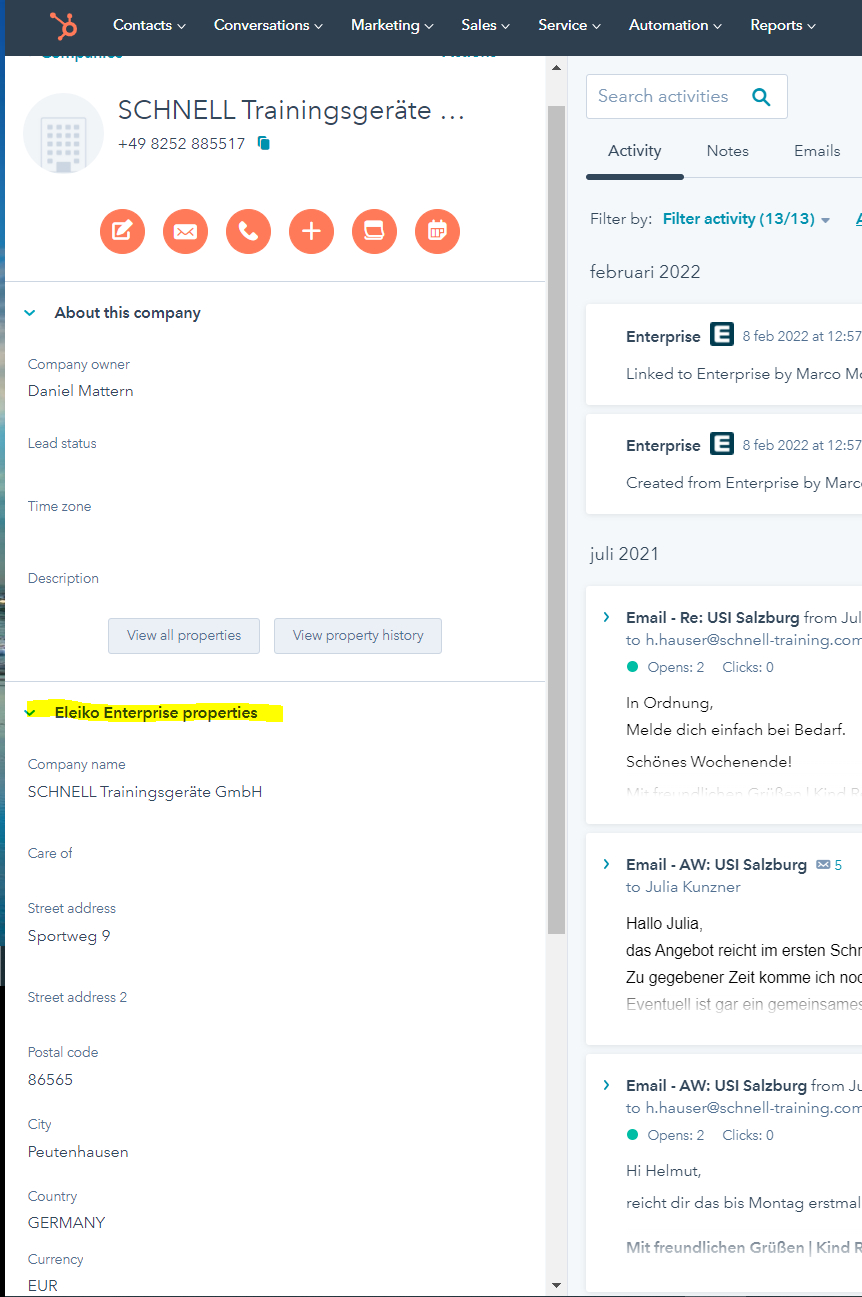
Go to the Companies page Contact > Company > find your company and go to the section Enterprise info in the right hand column and click Action > Link to Enterprise.
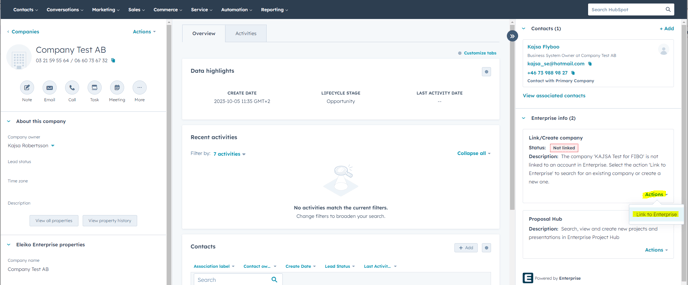
An Enterprise pop-up window will come up and use the name you just added for the company to search the customers in Enterprise.
.png?width=688&name=MicrosoftTeams-image%20(42).png)
If there is no exact match of the name you will get this information. 
Before you use the "Create new" button you should do a second search in the window with only a part of the name or a different way of writing the name to make sure you do not create a duplicate.
.png?width=688&name=MicrosoftTeams-image%20(41).png)
If you now get any hits in the search the following information will show up.
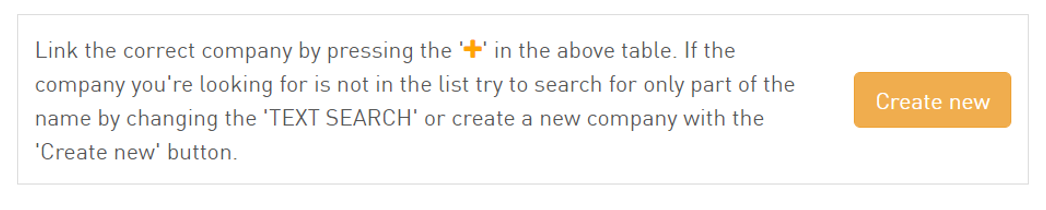
If the list now shows a company which is correct click the orange plus sign in the left hand column to link.
.png?width=688&name=MicrosoftTeams-image%20(43).png)
If you do not find the company use the "Create new" button and create the customer from scratch by adding all information Enterprise needs.
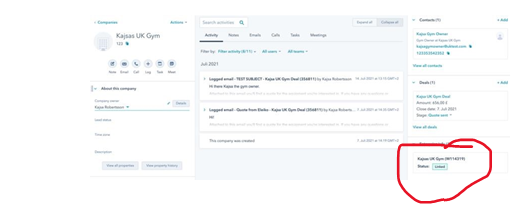
After the company is created close the window and go back to HubSpot. The company is now linked and the information is updated with the same information as Enterprise. If you update any of the Eleiko Enterprise Properties in HubSpot it will also be updated in Enterprise. (And also the other way around if someone would update the customer in Enterprise it will also be updated in HubSpot.)
Link Private Person (Contact)
First make sure you have the Contact created in HubSpot.
Go to Contact > Contact > find your contact/private person and go to the section Enterprise info in the right hand column and click Action.
If the email address for your HubSpot contact (private person) already exists in Enterprise as a Private customer you will only see the option Link when you click Action.
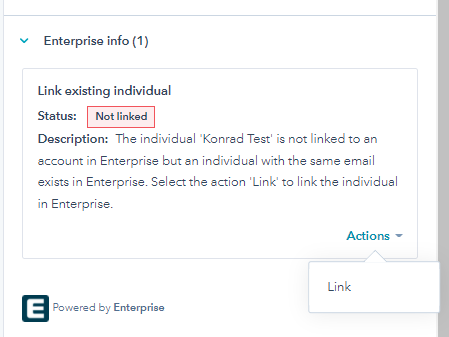
Click Link and wait. The page will be reloaded and and now you have a link between this contact in HubSpot and Enterprise.
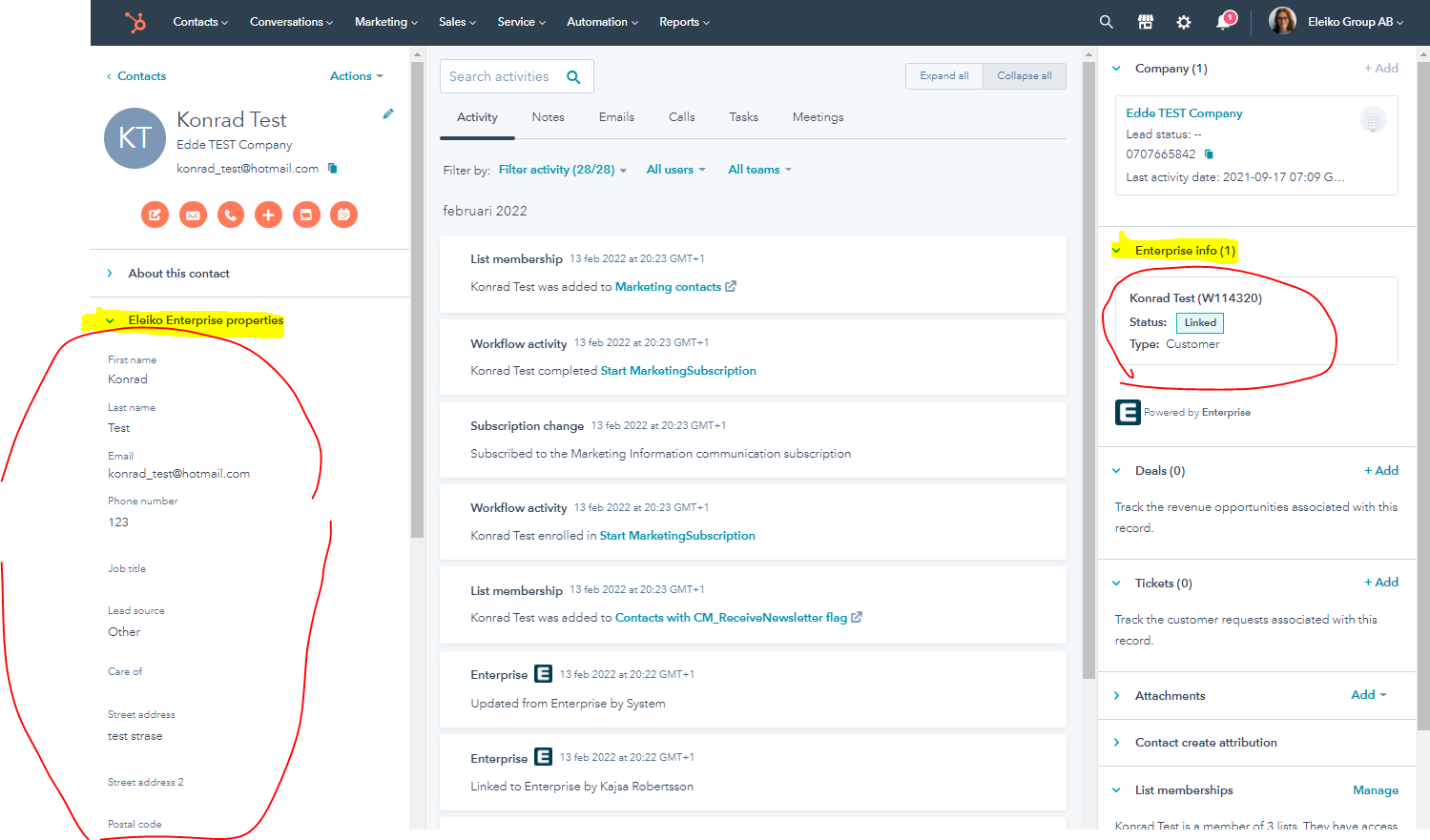
Note that Enterprise is "master" when the link is made and the data from Enterprise will now be saved to this contact in HubSpot for the Eleiko Enterprise Properties.
If you now, after the link is set up, change any of the Eleiko Enterprise Properties, in the left hand column, they will also be updated in Enterprise.
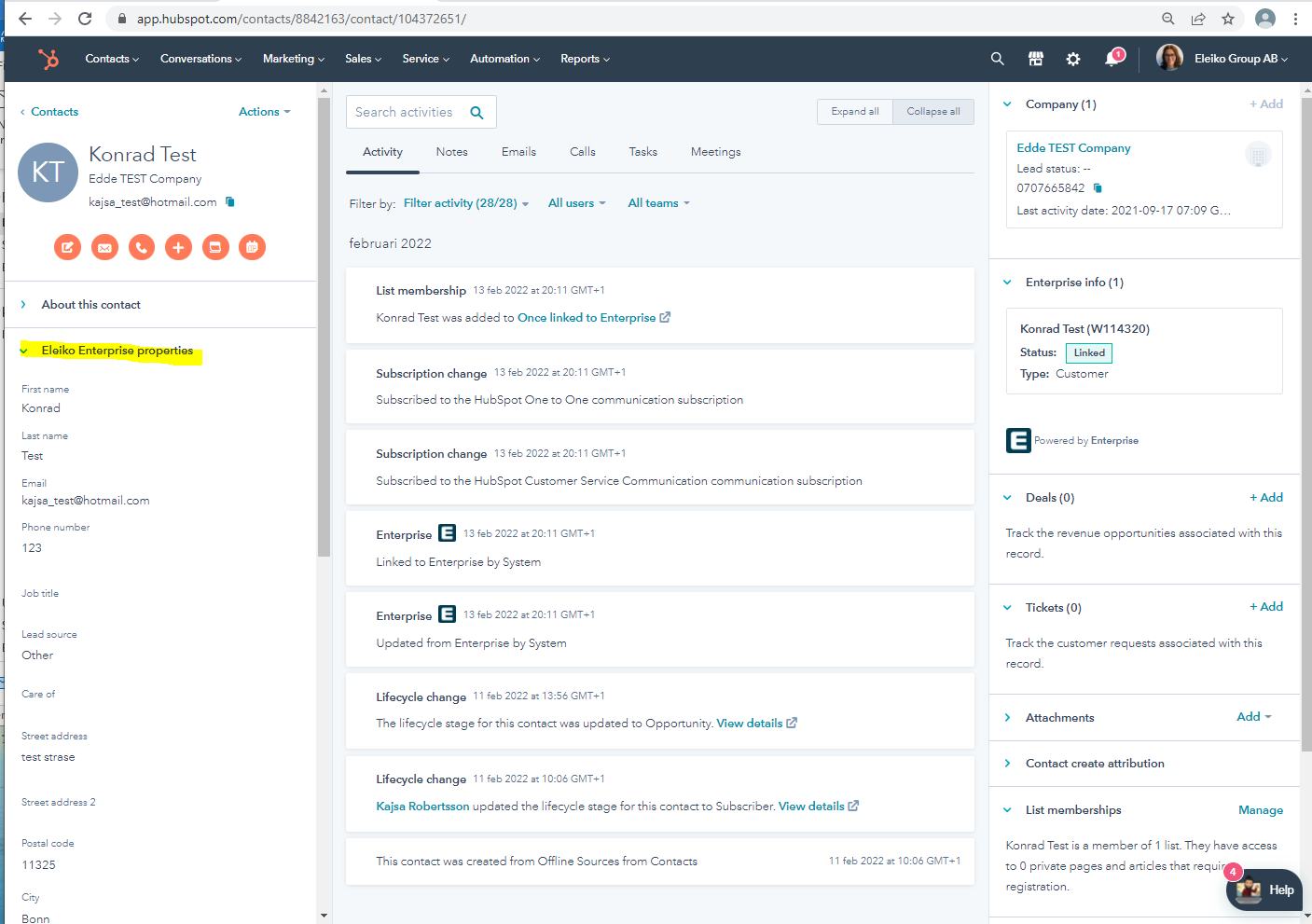
Under Enterprise info in the right hand column, can see that the Contact now is linked to a Private person (Type: Customer) in Enterprise.
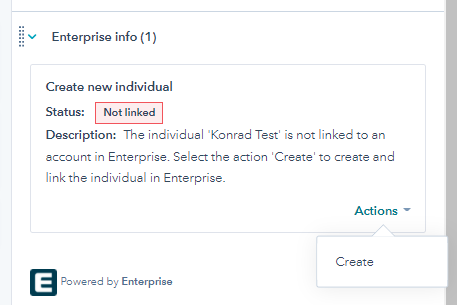
If there is no customer (Private person) in Enterprise with the email address you will only see the option Create when you click Action.
An Enterprise pop-up window will come up where you fill out all the information needed.
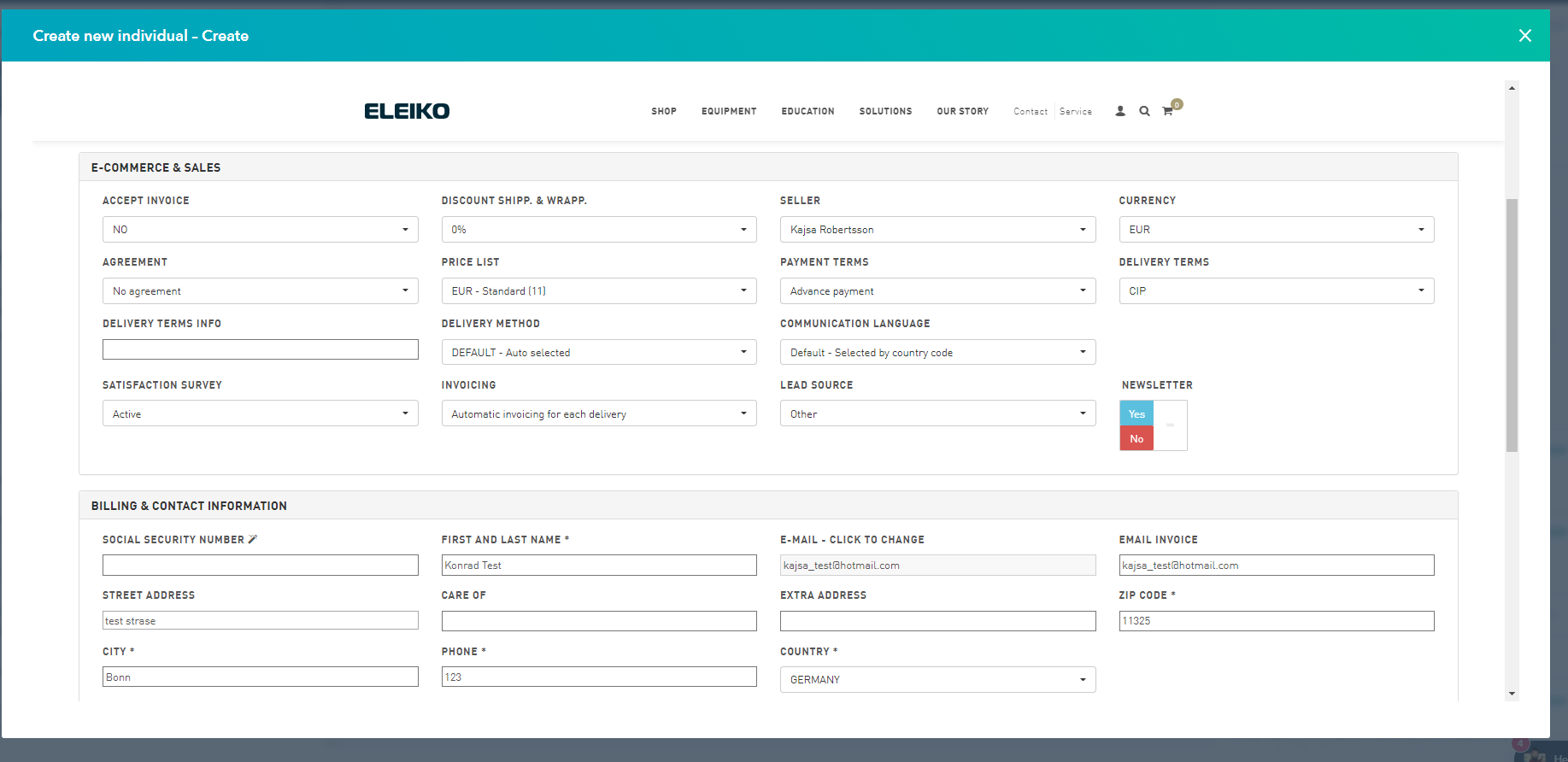
Click the brown button Create Customer. in the lower right hand corner in the Enterprise pop-up window.

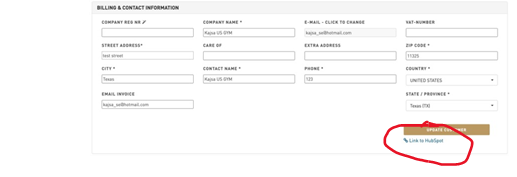
When the customer is created and the link is made correctly to HubSpot the button will change to Update Customer and you will also see Link to HubSpot below the button. 
Now you can close the Enterprise pop-up window and go back to HubSpot where you, under Enterprise info in the right hand column, can see that the Contact now is linked to a Private person (Type: Customer) in Enterprise.
If you change any of the Eleiko Enterprise Properties, in the left hand column, they will now also be updated in Enterprise since the link is set up.
From Enterprise
View the below video or read the instructions below:
Video: link a customer in Enterprise to HubSpot
From within Enterprise, you search for the customer and enter the customer number or search for the name. For this example, we choose W114321.
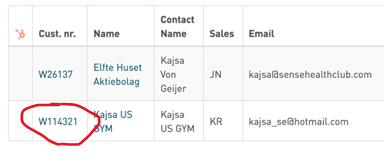
From this view you just edit the customer like normal and from there everything looks just like always except there is a new option in the bottom right that says Link to HubSpot.
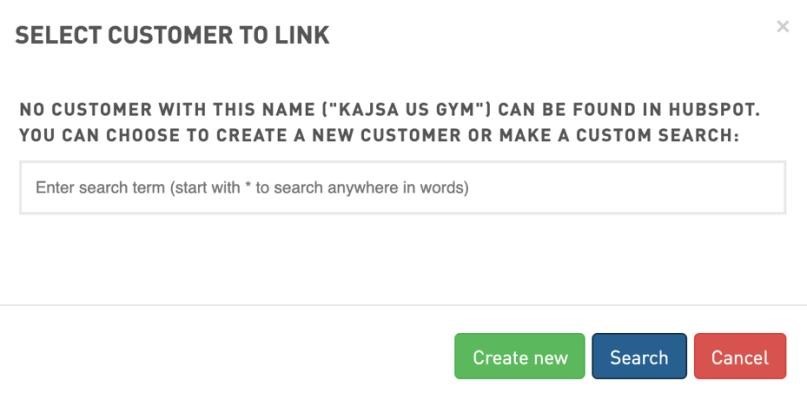
When clicking this option Enterprise automatically do a search to see if there is already a customer with this name. If the customer doesn’t exist this square shows up (see below).
If you are not sure that the customer is non existing in HubSpot you can do a search from here on “Kajsa” (from this example) to make sure it’s not getting added twice.
If the customer doesn’t exist, you just click create new. And then you will get a pop-up message that it was successfully created.
Now when you search for the customer in HubSpot you will also see that it’s linked together with all the other information mentioned earlier.