![Eleiko_Logo_2021.png]](https://knowledgebase.eleiko.com/hs-fs/hubfs/Eleiko_Logo_2021.png?height=40&name=Eleiko_Logo_2021.png)
Conversation Inbox
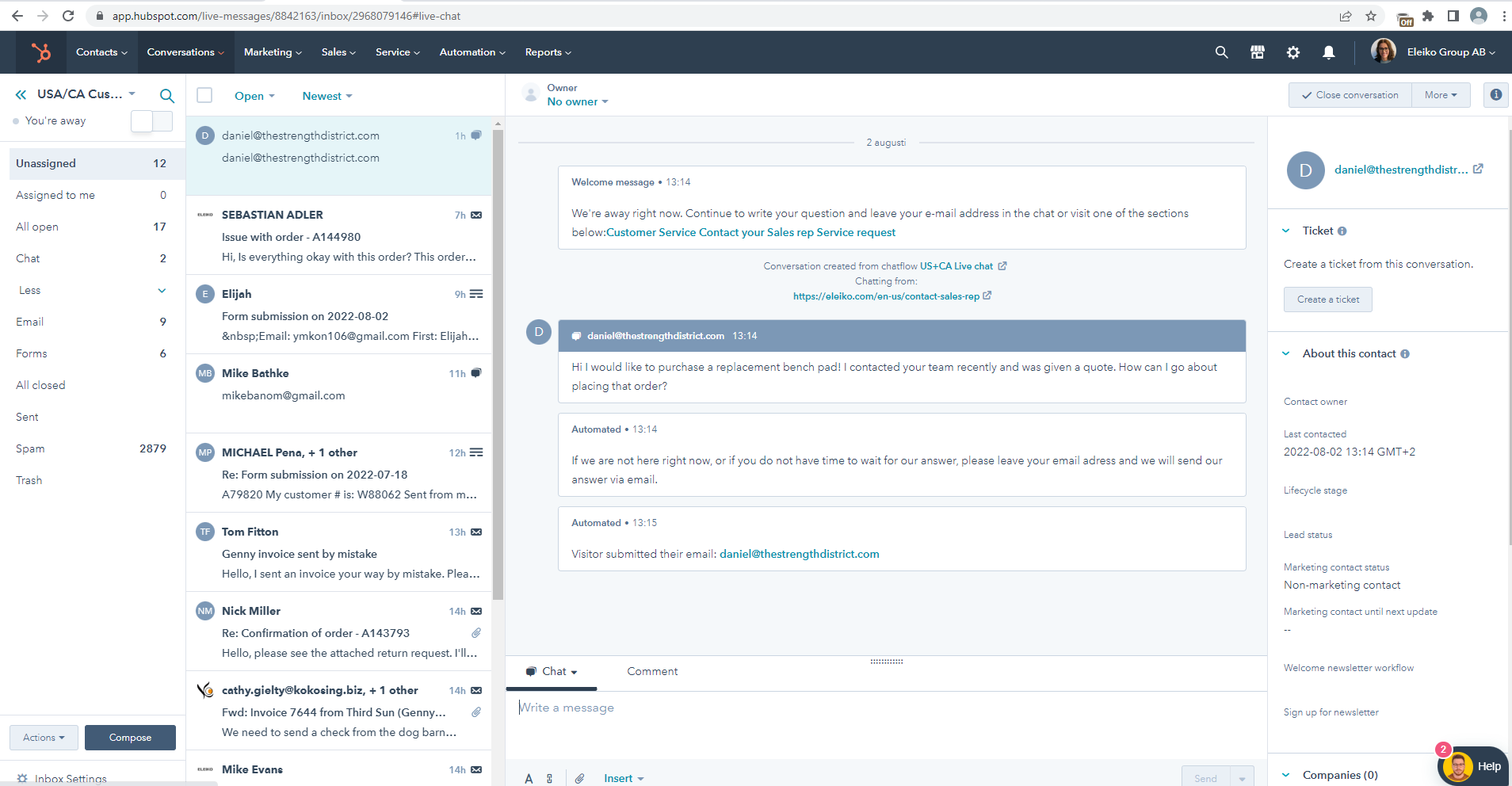
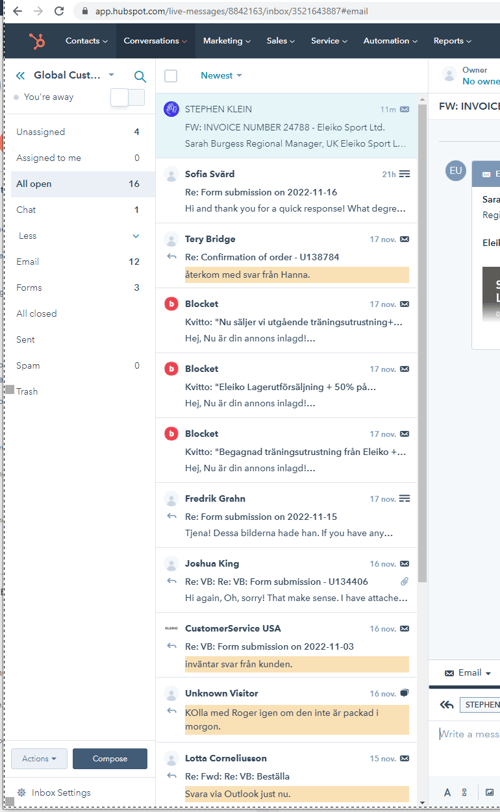
- All e-mail messages, forms and chats are sent to the Conversation Inbox. The Conversation inbox can be found at Conversations > Inbox > "Your conversation inbox" (for example USA/CA Customer Service)
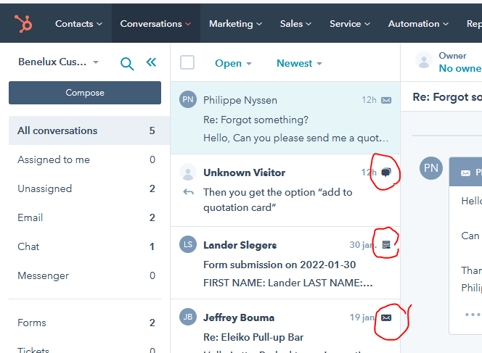
- There is an icon at each message so that it is clear if it is an mail, form or chat.
- You respond to emails, forms and chats directly in this view.
(If your team is using the HubSpot chat you can read more about chats in this article: Answer incoming Chat messages)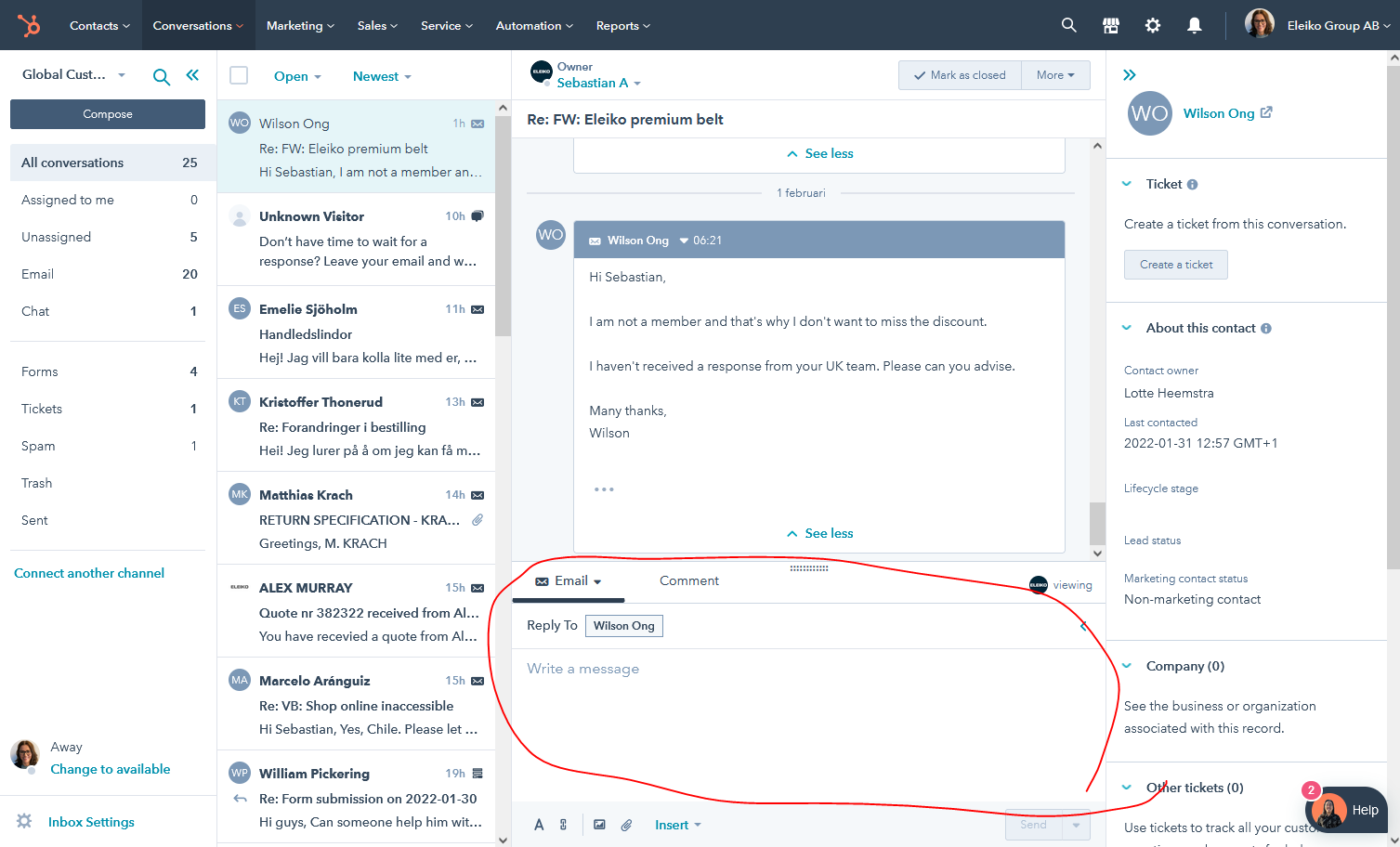
Emails and forms will be answered with a group email signature but your name is also attached so you do not need to sign the emails. - Under Comment you can write comments for internal use that are not visible to the customer. If you tag a colleague with @, he or she will receive an email / notification about this (if he/she has a setting for these notifications). You can also easily see which emails have a comment since they are highlighted it in yellow.
- If the question/email is for another team you can easily transfer to another conversation inbox in HubSpot.
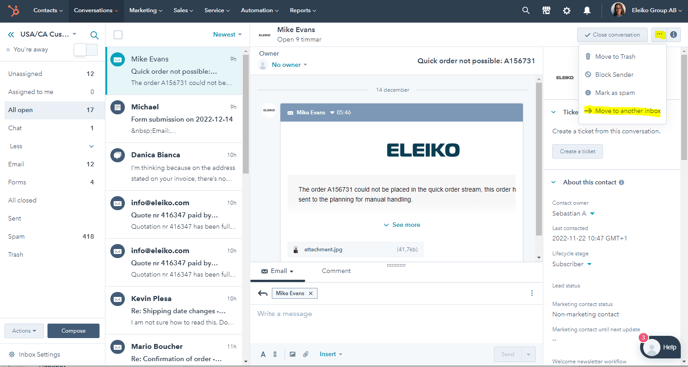
Read more in this document about what teams are using a conversation inbox in HubSpot or what email adress you can forward customer support questions to: https://eleiko.sharepoint.com/:w:/s/EleikoTribe/EcPheW3v3SNMgPXH8twRqx4BM2cV-y9JAcX6K7_f8r50cw?e=FhcNiO
- To the right is a column with information about the customer (if we have any in HubSpot). Information can be found about previous conversations and tickets. You can also click on the name to go to the customer view to find out even more about the customer. This will take you to the Contact view where you can link the customer to Enterprise to see if there are any weborders or old orders that are not in HubSpot.
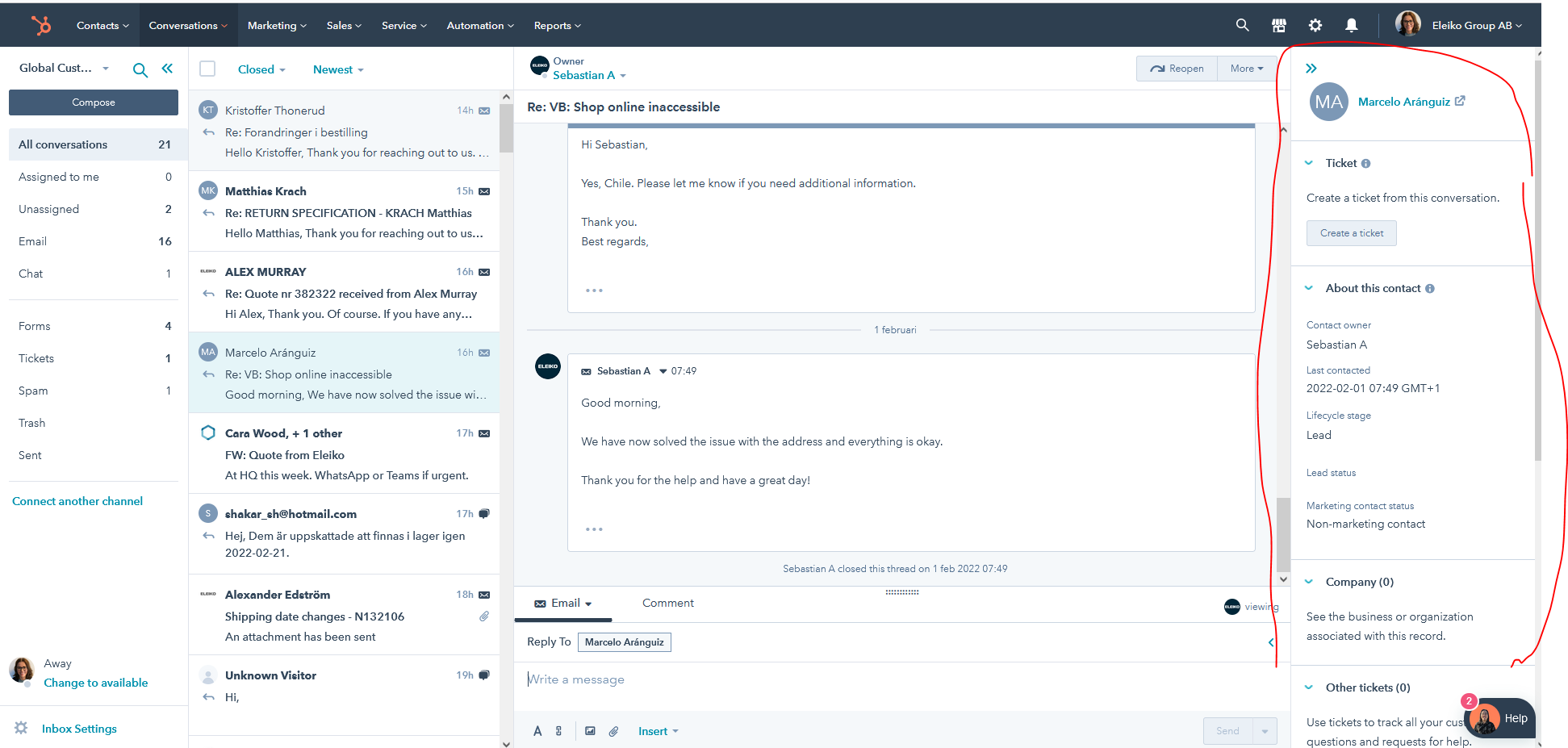
- For the cases that are not solved directly via returning email back and forth, you can create a ticket, read more about it here (KB coming later) (NOTE: Only used by some of Eleiko's teams. Eleiko Service Team gets ticket created automatically.)
Send email
If you want to compose and send a new email (not replying to an existing one) select Compose
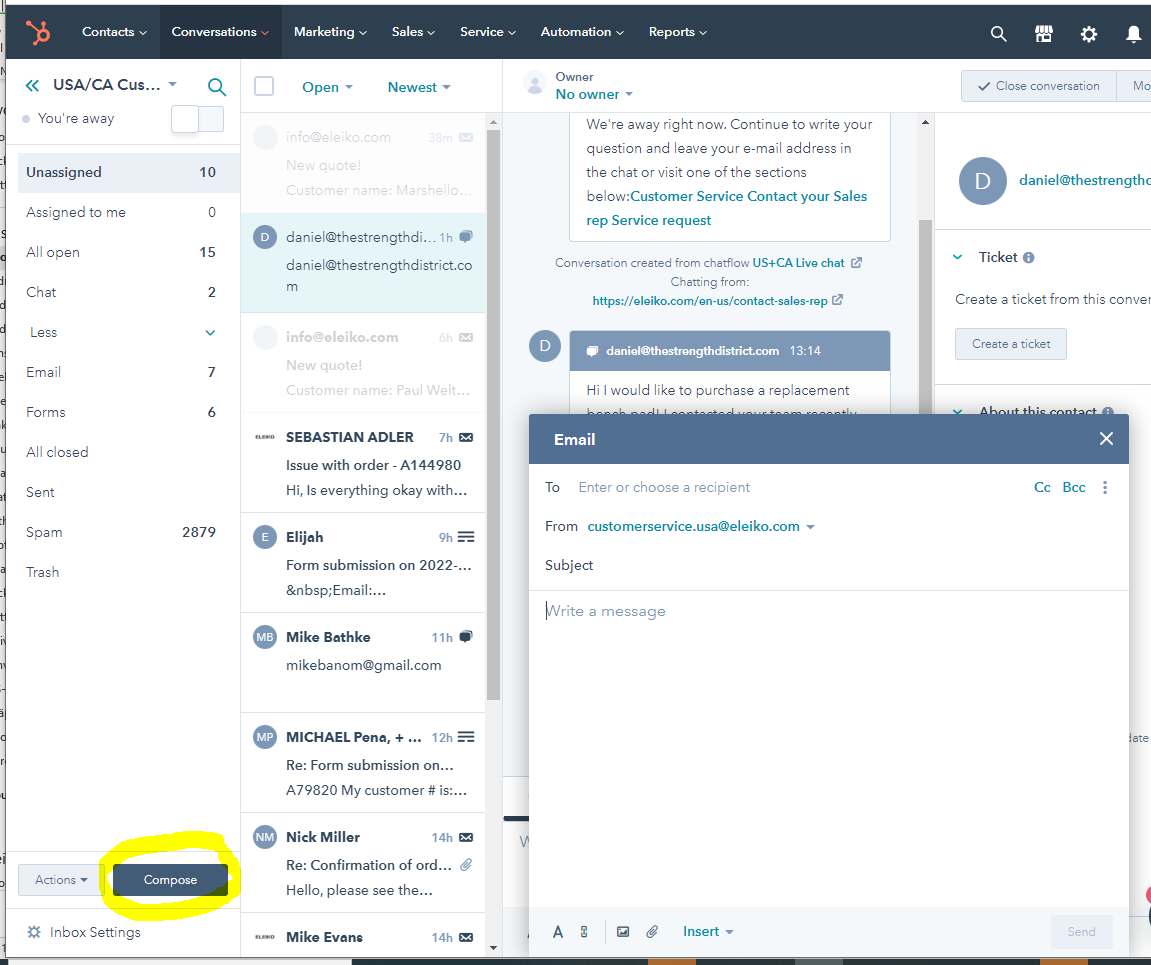
Emails and forms will be answered with a group email signature but your name is also attached so you do not need to sign the emails.
Contact view
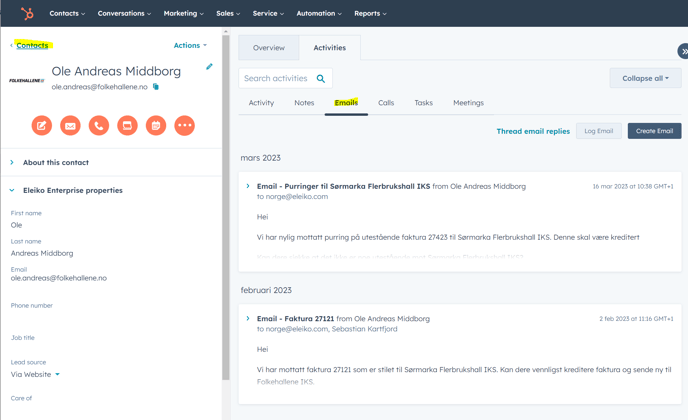
The emails are also saved on the contact view for the contact if he/she is created in HubSpot: