![Eleiko_Logo_2021.png]](https://knowledgebase.eleiko.com/hs-fs/hubfs/Eleiko_Logo_2021.png?height=40&name=Eleiko_Logo_2021.png)
If you have selected "Log to CRM" (see below), please note that all emails, except those with @eleiko.com* addresses, will be tracked in HubSpot. These emails will be available on the contact record in HubSpot if the corresponding checkboxes are selected in your Outlook. Deselect these checkboxes for any emails you do not want logged in HubSpot, or add the addresses to your "Never log list"
If you are using the old HubSpot Sales Outlook desktop add-in note that HubSpot will no longer develop any new functionality for this version. It's therefore highly recommended that you instead switch to the HubSpot Sales Office 365 add-in which is the add-in discussed in this Knowledge base article below.
The HubSpot Sales Office 365 add-in allows you to track and log emails and use some of the HubSpot sales tools directly in your email account. The add-in can be used in your Outlook desktop account on Windows as well as in your Outlook desktop account on a Mac, in your Outlook on the web account, and in your Outlook.com account.
Once installed, the add-in will appear in the ribbon at the top of the email composition window in Outlook on the desktop, and at the bottom right of the email composition window in Outlook.com or Outlook on web.
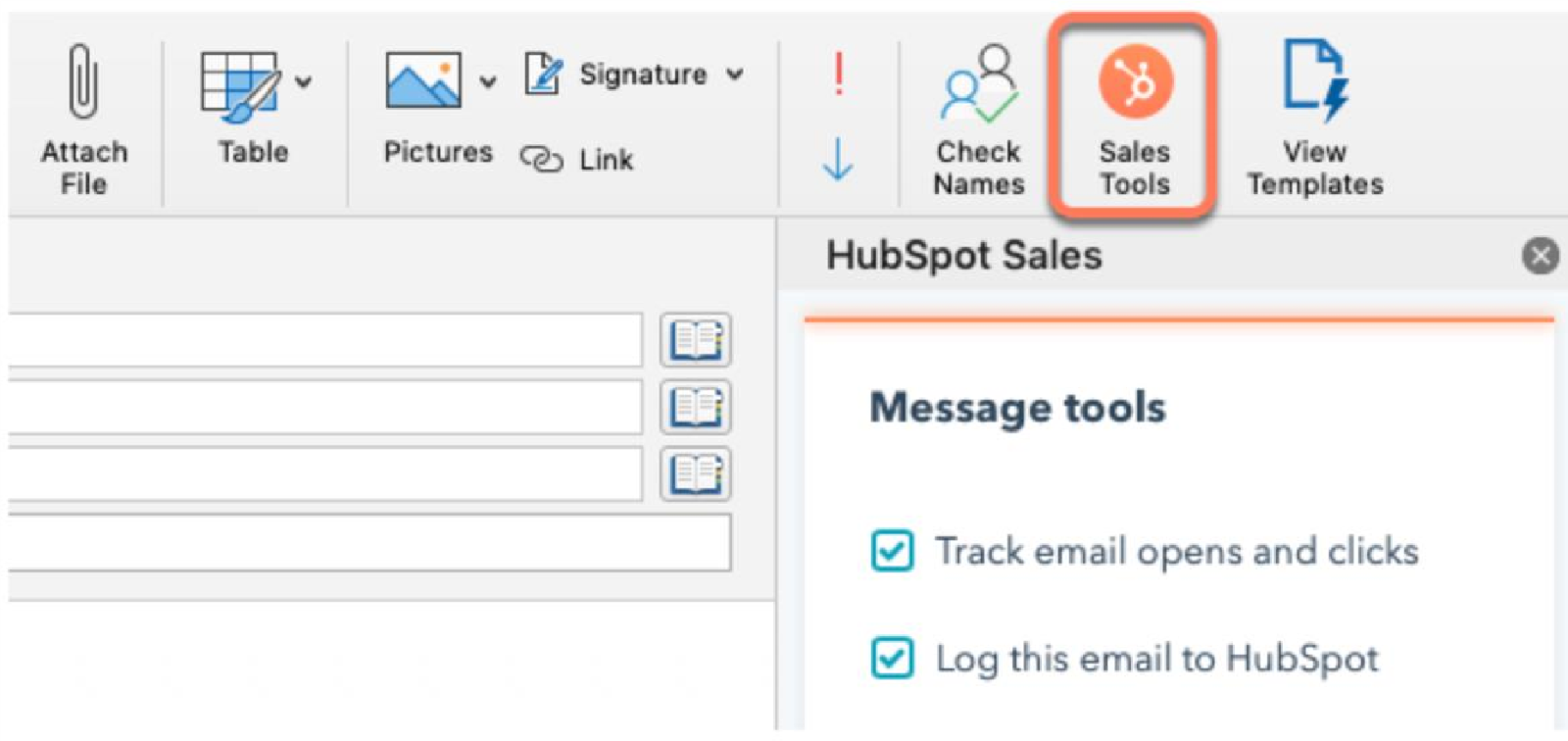
Log to CRM = the email will show up in HubSpot
Track Email = you get notifications and can see if and when the customer has opened the email
Read more: https://knowledge.hubspot.com/connected-email/understand-hubspot-sales-email-open-and-click-tracking
Below is a list of articles in HubSpot's own Knowledge base with further information regarding the HubSpot Sales Office 365 add-in:
Set up
Use the add-in
- Track and log emails with the HubSpot Sales Office 365 add-in
- Use sales tools with the HubSpot Sales Office 365 add-in
- Use contact profiles with the HubSpot Sales Office 365 add-in
Troubleshoot the add-in