![Eleiko_Logo_2021.png]](https://knowledgebase.eleiko.com/hs-fs/hubfs/Eleiko_Logo_2021.png?height=40&name=Eleiko_Logo_2021.png)
When a quote has expired it is automatically moved to Closed lost. If you try to move it back to Quote sent/Negotiation it will automatically move back to Closed lost. To make sure this never happens if the quote is still active make sure to update the Expiry date before the deal is automatically moved.
How do I update the Expiry date?
Go to the deal in HubSpot and open the quote in the pop-up Enterprise window.
In the menu (see below) you will find a new option "Update Expiration Date / Pricing", click on this menu option to update your quote with the different options for prices and extension of the expiry date. 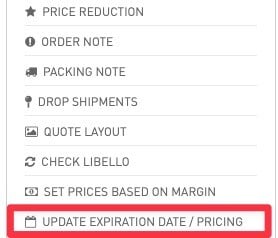
In the case the expiration date has been already passed, you can just click the blue button located at the top of the quote, name "Update Expiration Date."

There will now be three options:
1. Request an extension of the expiration date and keep the margin
Should you require an extension of the expiration date while maintaining the margin, you may do so by selecting this function. It is important to note that this option should be rarely used and only, when necessary, as it results in saving the cost price for the specified period. As a result, the process is subject to the approval of your manager. Note: This is the cost price based on order book / quote. When it comes to the delivery/invoicing the cost price on that day will affect of course the margin. As a general rule, pricing should not exceed a validity period of 30 days*. You may opt for either option 2 or 3, which allows you to extend the offer with ease.
2. Extend for 30 days* and update only cost prices
This function allows for 30 days extension without requiring additional approval. The system will check for new cost prices in the backend and update them accordingly, margins may change.
3. Extend for 30 days* and update both cost prices and customer prices
This function allows for 30 days extension without requiring additional approval. The system will check for new cost prices and customer prices in the backend and update them accordingly, margins may change.
*the days extended are always from the date you do the update and not based on the old expiry date in any way
Prior to implementing the changes, you will receive a popup with a report for options 2 and 3, which you can then preview, and you may cancel if needed.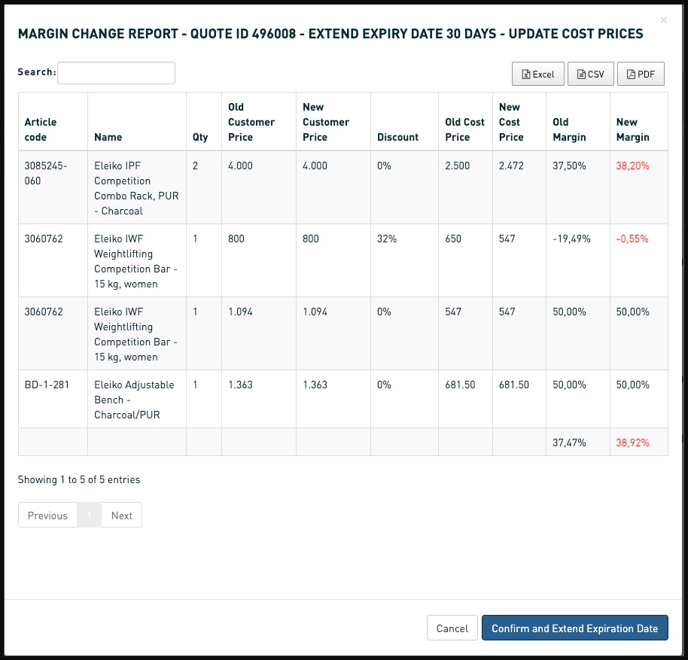
The system now saves the cost prices in line with the expiration date, which means a price update will not affect immediately your non expired quotes.
After the expiry date has been updated you need to move the deal back to Quote Sent or Negotiation to make sure that it is active again.
When you do update the Deal Stage you will be asked to review the Estimated Shipping date and Likelihood to make sure Purchasing has the best possible data to work with.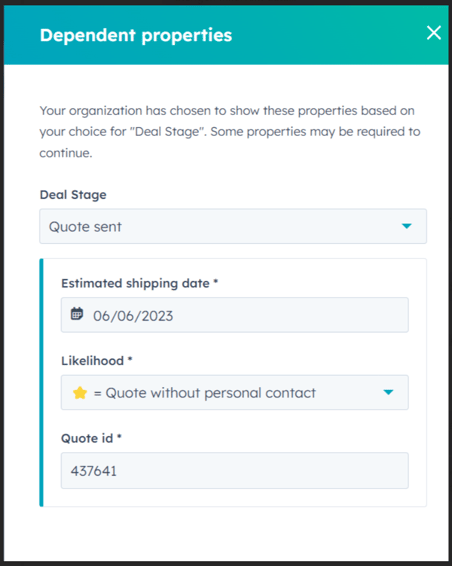
Should you have any specific questions, please do not hesitate to contact Daniel Mattern directly.
Make sure to keep track of your deals so that they do not need to end up in Closed Lost if not intended since this means that purchasing does not see them in their reports.
How can I keep track of the Expiry date?
- You will get email reminders about it
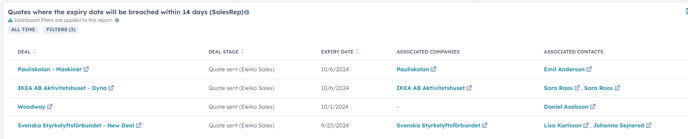
- You can view it in your dashboard "Eleiko Sales Representative Dashboard (Your currency)" in the report "Quotes where the expiry date will be breached within 14 days"
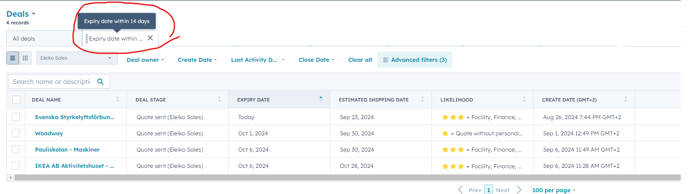
- If you add the tab/filter "Expiry date with 14 days"
- The systems will display a red box in the quote to indicate if it has been expired. By default, all new quotes will be valid for 30 days.
- The system display the expiration date alongside the contribution rates in the amount summary upon checking.
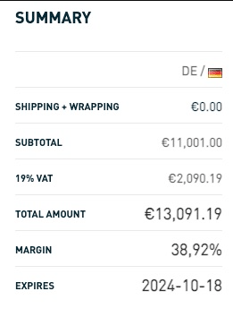
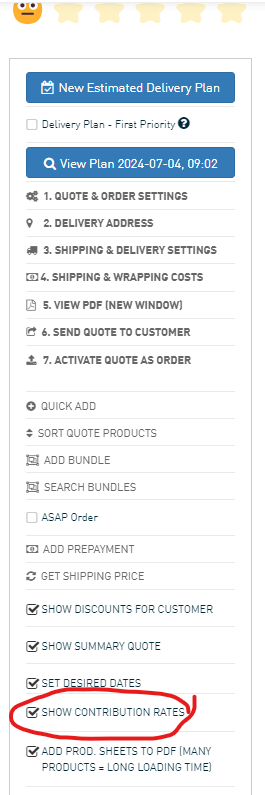
If you do not see it make sure to select "Show Contribution Rates"