![Eleiko_Logo_2021.png]](https://knowledgebase.eleiko.com/hs-fs/hubfs/Eleiko_Logo_2021.png?height=40&name=Eleiko_Logo_2021.png)
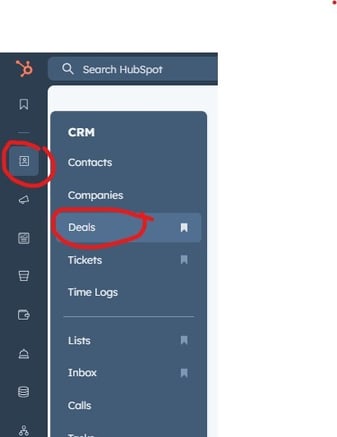
To find the Deals view go to CRM > Deals.
From here you will see your teams pipeline by default if you are in the view/tab "All Deals", see below. This means you will also be able to see each other’s deals within your team.
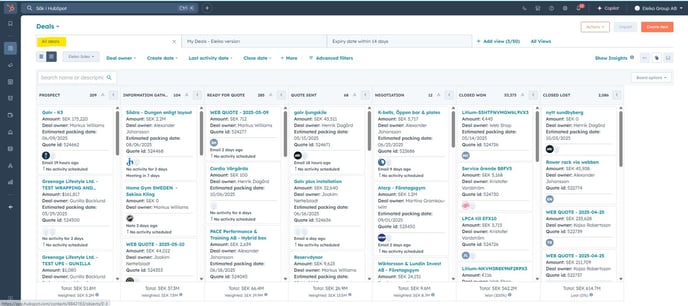
It’s recommended that you add the following views/tabs (instead of the default):
- My Deals - Eleiko version
- All Deals - Eleiko Version
- Expiry date within 14 days
Read more here about how you add views/tabs: Add and create views/tabs
It is recommended to make your own deals as default instead of all deals. To do this pull the tab to the far left:

It is better to use the Eleiko version instead of the "My Deals" since the Eleiko version has columns that are predefined for what an Eleiko Sales rep needs. Scroll to the left to see more.

In the "Expiry date within 14 days" view/tab you can keep track of your deals and make sure none of them are automatically moved to "Closed Lost". Read more about that in these Knowledge base articles:
You can also select your own preferred currency in the total on the bottom of each pipeline state. Read more in this article: Preferred currency in Deals Pipeline
Pipeline Stages
In the pipeline you can easily see where your deal is at. The pipeline includes the following stages:
- Prospect
- Information gathering
- Ready for quote
- Quote sent
- the deal will automatically move to this stage if a quote has been sent from Enterprise - Negotiation
- Closed won
- the deal will automatically move to this stage if an order has been activated - Closed lost
The different Pipeline stages is defined like this at Eleiko: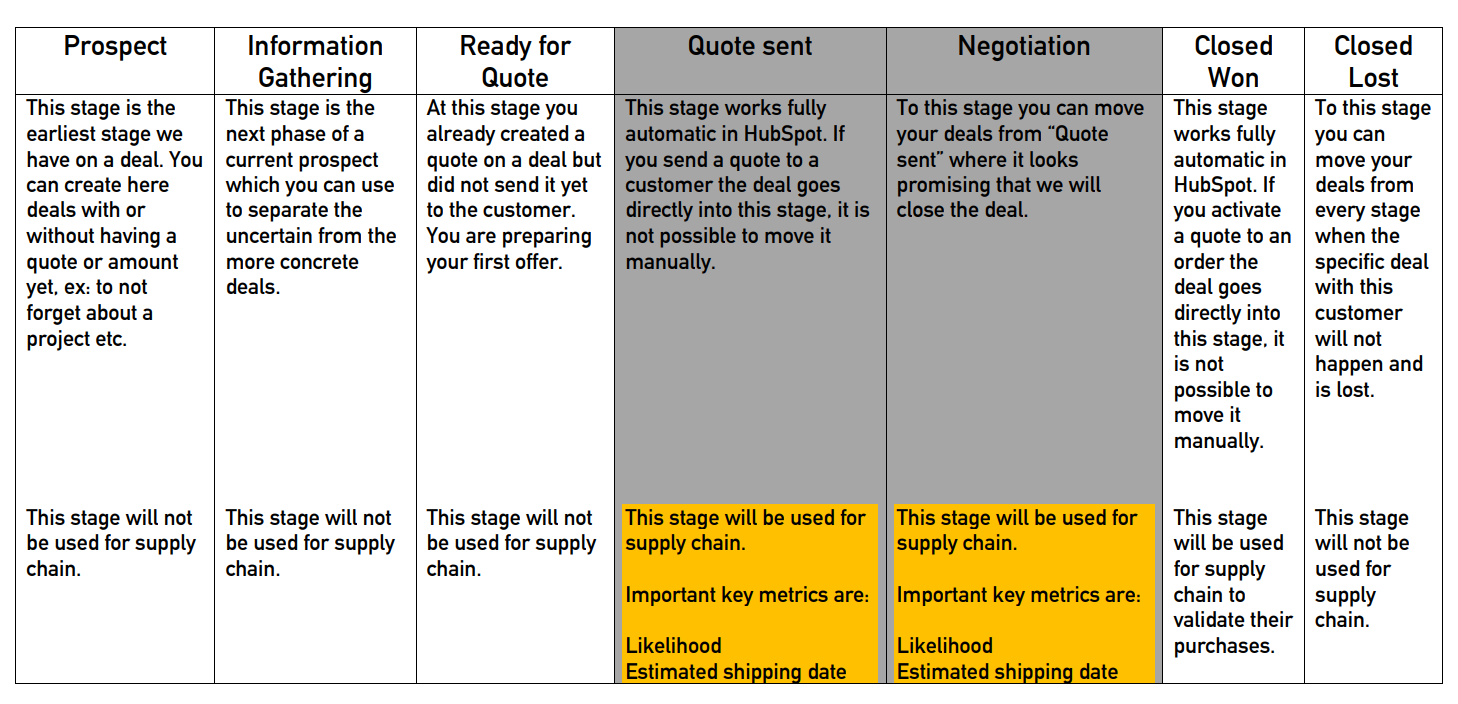
Create Deals
You can create deals straight from the pipeline view but the easiest way is doing it directly from the customer because then all the data will be linked straight away.
When you are in the Company view you will create deals by clicking +Add on the right under Deals.
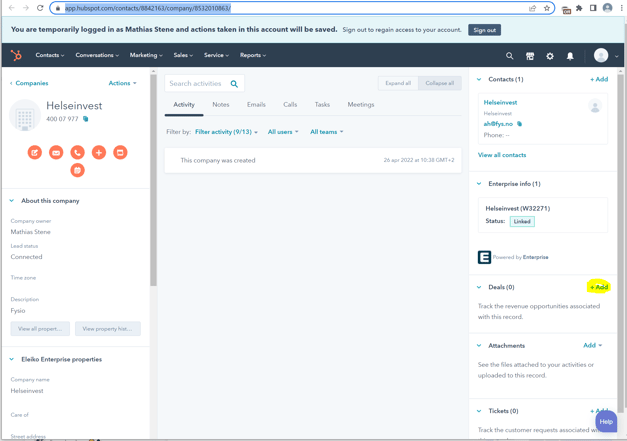
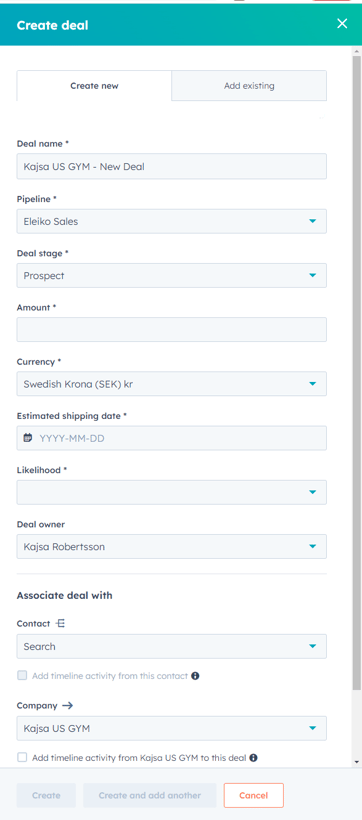
When adding a deal to a customer you will get some options from the right, see below.
From here you must fill in the following:
- Name of the deal – you can name it whatever you like or according to your team's guidelines.
- Pipeline – The pipeline is set to Eleiko Sales by default.
- Deal stage – what pipeline stage the deal is in (You should most likely select Prospect, Information gathering or Ready for quote.)
- Amount – in this stage it’s just a qualified guess of the amount the deal will bring but later this will be linked to the amount of the Enterprise quote.
- Currency – set the currency for this deal.
- Estimated shipping date - this is the date where you as a Sales rep think this deal will need to be shipped from the warehouse. NOTE: This date needs to be revisited through out the sales pipeline to be accurate since the purchasing team at Eleiko is using this to predict orders.
- Likelihood - how likely you think it is that you will win this deal. This field will later get linked to the quote in Enterprise. NOTE: This field needs to be revisited through out the sales pipeline to be accurate since the purchasing team at Eleiko is using this to predict orders.
- Associated with… – If not already pre selected you should associate the deal to a company and/or a contact.
Now when you go back to the pipeline (Sales > Deals) you will see your deal there.
Inactive quotes
In the pipeline you will see on the deal in the pipeline how long it has been inactive for (ie no action has been taken). Make sure it is not inactive for too long.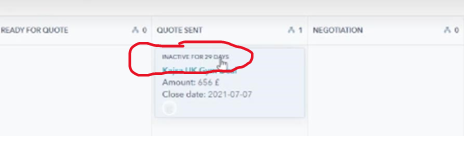
You will receive notification when you are closed to breaching Estimated shipping date and/or the quote will be expired. Read more about that here.